
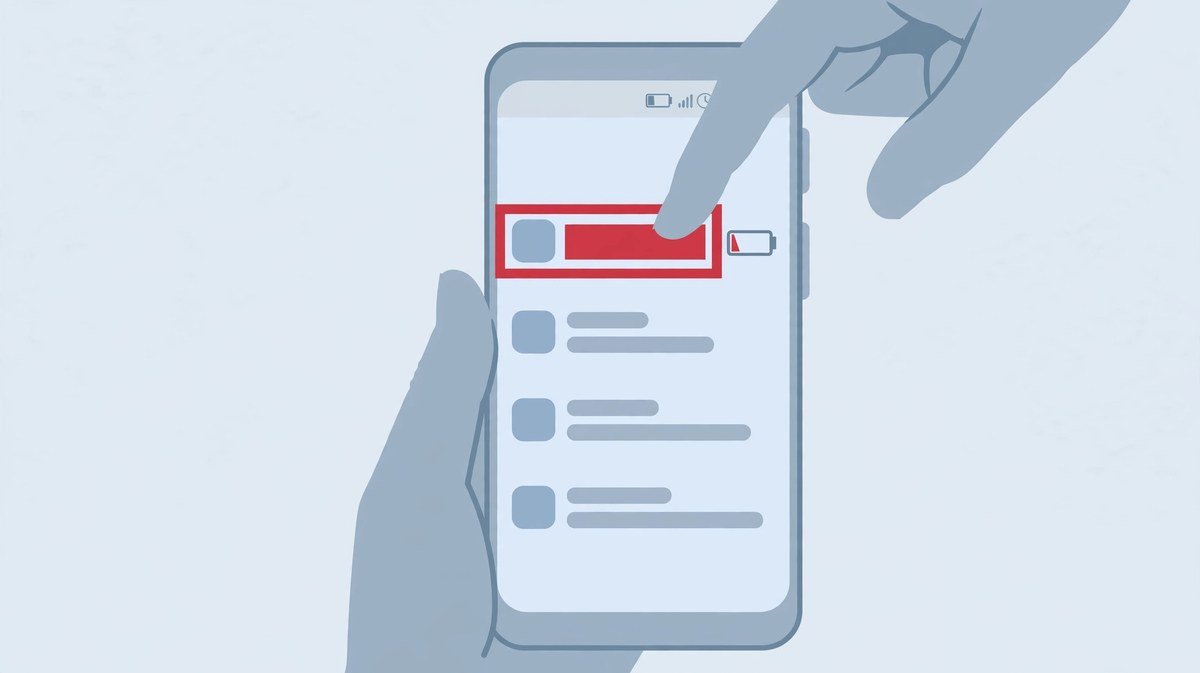
Your battery is dying by mid-afternoon, and you have a suspicion, but no proof. The proof is already on your phone: both Android and iPhone quietly keep a per-app record of battery use. Finding which app is draining battery on your device is mostly about opening that screen and reading it correctly, which takes about two minutes.
On Android: The Battery Usage Screen
Open Settings > Battery > Battery usage. You will see a list of apps ranked by how much battery each one has used, usually since the last full charge, with the biggest consumer at the top.
Tap any app in the list to see the detail that actually matters: how much of its activity happened in the background. Some brands, including Samsung and Google Pixel, also let you switch to a longer view covering several days, which is far more useful than a single charge cycle: one bad afternoon can be an accident, but the same app at the top for a week is a pattern.
On iPhone: The Battery Screen
Open Settings > Battery. Below the battery level graph you will find the per-app list, and you can switch between the last 24 hours and the last 10 days. The 10-day view is the one to trust, for the same reason: it shows habits, not accidents.
Tap an app, or tap Show Activity, to reveal how much time it spent on screen versus in the background. An app with modest screen time but hours of background activity is behaving very differently from one you simply used a lot.
How to Read the Numbers Like a Detective
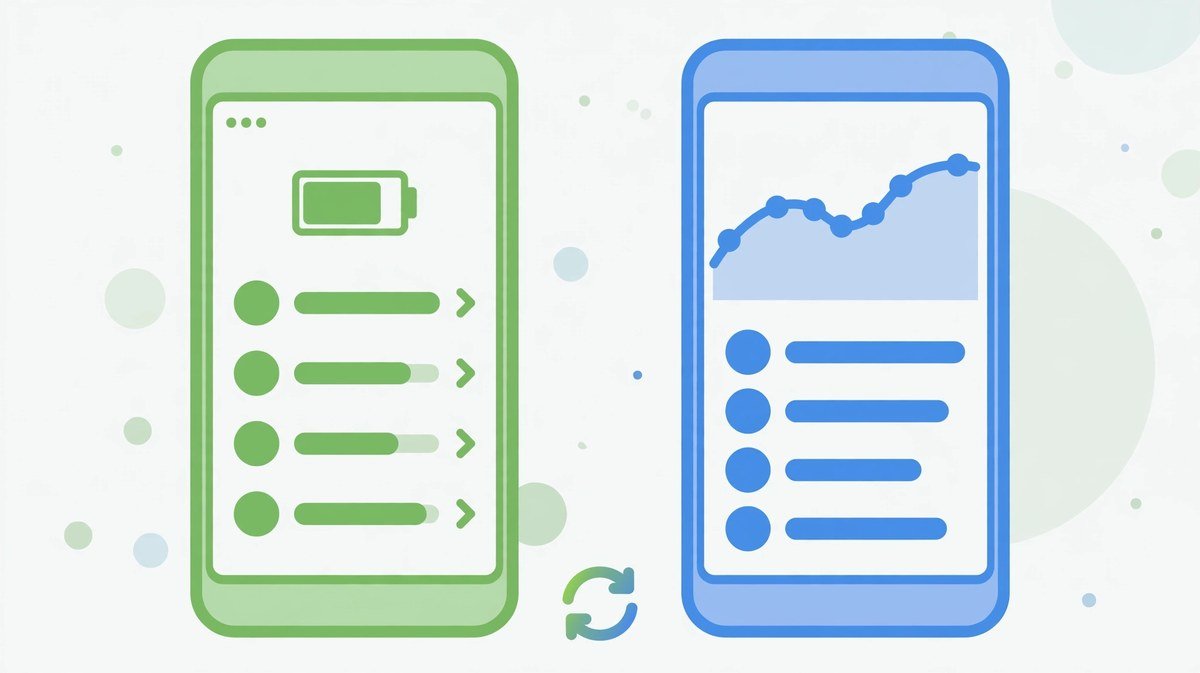
The list alone does not convict anyone. Three checks separate a genuinely greedy app from an innocent one:
Compare share against use. If an app used 25 percent of your battery and you barely opened it, that is a red flag. If your navigation app used 25 percent during a four-hour drive, that is just maths.
Background time is the tell. Foreground use is you spending battery on purpose. Heavy background time from an app you rarely open means it is working when it should be asleep: syncing, polling location, or stuck in a retry loop.
System entries need context. Android System, Android OS, or Google Play Services sitting high right after a software update is usually the update still settling, and it fades within a day or two. The same entries staying high for a week, with no update in sight, usually means an app is leaning on them, and the app list below them often gives it away.
One more honest note: the screen itself appearing near the top is normal. The display is one of the hungriest parts of any phone.
The Usual Suspects
Certain kinds of apps show up as culprits again and again: social media apps refreshing feeds and location in the background, navigation and delivery apps holding GPS, streaming apps left buffering on a weak connection, free utility apps of doubtful quality, and VPN apps, which route every connection the phone makes and pay for it in battery.
None of this makes them bad apps. It makes them the first places to look, and the fix is usually a setting rather than a deletion.
What to Do With the Culprit
Work down this ladder, and stop at the step that fixes it:
Update the app. Background drain is often a bug, and developers patch these quickly. An out-of-date culprit is the easiest fix there is.
Restrict its background activity. On Android, open Settings > Apps > (the app) > Battery and choose Restricted. On iPhone, switch the app off under Settings > General > Background App Refresh, and set its location access to While Using where it offers the choice.
Replace or remove it. If an app still drains after being updated and restricted, it is telling you what it is. There is almost always an alternative that does the same job politely.
Skip the force-stop habit, by the way. Force-stopping lasts until the app wakes itself again, which badly behaved apps do within the hour. Restriction is the setting that sticks.
If No App Stands Out
Sometimes the list is boring: nothing greedy, everything modest, and the battery still falls fast. That pattern points away from apps entirely. Weak signal at home or work, a screen at full brightness all day, or a battery that has simply worn out are the likely stories, and our complete guide to why a phone battery is draining so fast walks through each one. If the loss happens mostly while the phone sits unused, our guide to a phone battery draining fast overnight covers that specific pattern.
And if the culprit turns out to be an app you installed recently, it is worth knowing the same app often drags performance down too. Our guide to an Android phone that turned slow after installing new apps shows how to confirm it and what to do next.
Frequently Asked Questions
Does closing all my apps save battery?
No, and it can backfire. Your phone manages idle apps efficiently on its own, and swiping everything away forces apps to reload from scratch next time, which costs more power than leaving them suspended. Restrict the one proven culprit instead.
Why is Google Play Services or Android System using so much battery?
These entries often take the blame for work other apps asked them to do, like location requests and sync. They also spike after system updates. If they stay at the top for days, look at which apps below them use location and sync heavily.
Can I trust battery-saver and cleaner apps?
Mostly, no. The built-in battery screen already shows you the truth, and it does not need advertisements or a subscription to do it. Many third-party savers add their own background activity, which is the opposite of the goal.
How much drain from one app is too much?
As a rule of thumb, an app taking more than about 10 percent of a charge while you barely use it deserves attention. An app you used heavily earning its share is not a problem, whatever the percentage says.
The Bottom Line
You do not need an app, a tool, or a technician to find out which app is draining battery on your phone. Open the built-in battery screen, compare each app’s share against how much you actually used it, and pay special attention to background time. Then work the ladder: update, restrict, replace. Two minutes of reading the right screen beats a week of guessing.
1 thought on “How to Find Which App Is Draining Your Battery”