

Clearing the cache is the most repeated advice in all of Android troubleshooting, and possibly the least explained. To clear cache on android phones takes about twenty seconds, yet most guides stop at the button and never answer the questions that actually matter: what exactly gets deleted, what stays safe, and whether it speeds anything up at all.
This guide covers all three levels of cache clearing, the quick per-app clear, the caches hiding inside apps like your browser, and the system-level clear most people have never heard of. It also gives you the honest version of the speed claim. Cache clearing helps in specific situations, is pointless in others, and occasionally surprises people who tapped the wrong button.
What App Cache Actually Is
Every app keeps a stash of temporary files: images it has already downloaded, page pieces, video thumbnails, bits of your feed, so that next time it opens, it does not have to fetch everything again. That stash is the cache. It is the app’s working scratch paper.
Two things follow from that. First, the cache is supposed to be there. A healthy app rebuilds a cache because the cache is what makes it fast. Second, the cache is not your stuff. Your photos, chats, accounts, and settings live in the app’s data, a separate drawer entirely. Clearing the cache throws away scratch paper. Nothing on it matters to you.
Why does cache grow so large, then? Because apps are lazy housekeepers. Social and video apps especially will cache gigabytes of images and clips you scrolled past once, just in case you scroll back. On a phone with breathing room, harmless. On a nearly full phone, a real problem, and that distinction decides whether clearing helps you, as you will see below.
Clear Cache vs Clear Data: The Difference That Matters
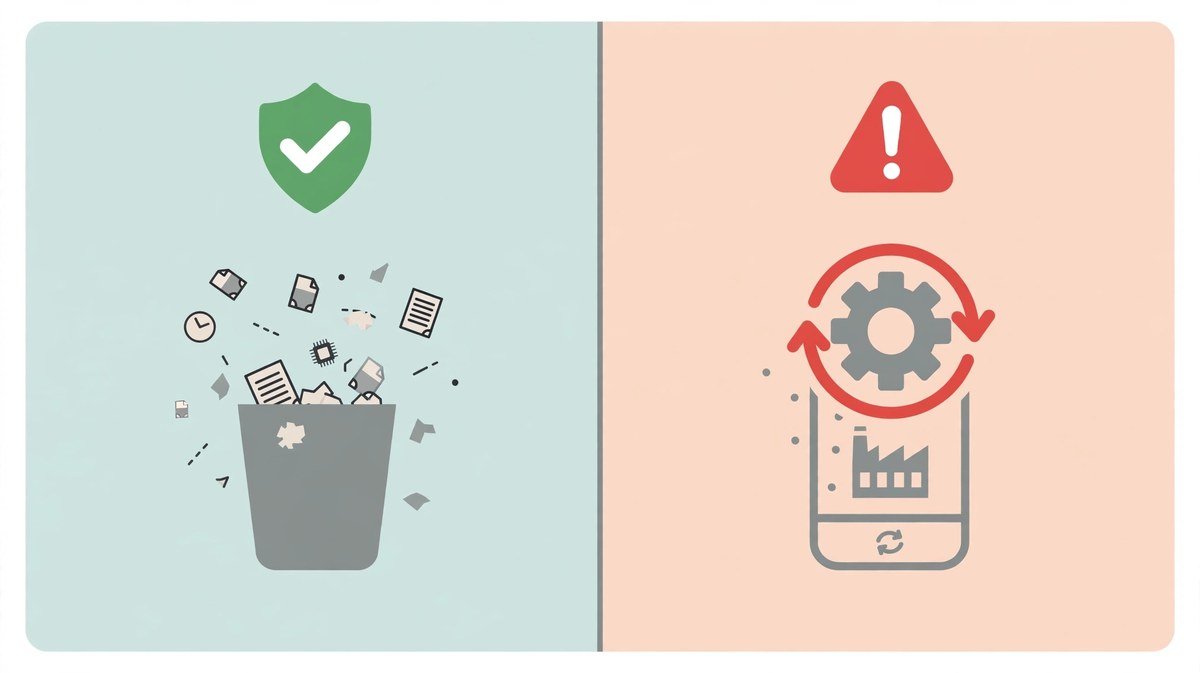
On the same settings screen sit two buttons, and they are not cousins, they are strangers:
Clear cache deletes temporary files only. You stay logged in. Your settings, chats, and downloads survive. The app might load slightly slower the very first time afterwards, while it rebuilds.
Clear data (labelled Clear storage on some phones) resets the app to the day it was installed. Accounts log out, settings reset, offline downloads vanish, and anything stored only inside that app goes with it. Sometimes that reset is the right medicine for a badly broken app, but it should always be a decision, never a slip of the thumb.
If you remember one line from this guide, make it this one: cache is safe to clear any time; data is a reset button wearing a similar name.
How to Clear Cache on Android for One App
The per-app clear is the level you will use most:
Open Settings, tap Apps, then See all apps. Find the app and tap it, then tap Storage & cache, and tap Clear cache. The number next to the button drops to near zero, and you are done.
There is a shortcut worth knowing: long-press the app’s icon on your home screen, tap the App info (i) button that appears, and you land on that same screen, then Storage & cache, then Clear cache.
Which apps deserve the effort? Sort the app list by size if your phone allows it, and start with the heavyweights. Browsers like Chrome, and social and video apps like TikTok, Instagram, Facebook, and YouTube, routinely carry a gigabyte or more of cache each. A messaging app’s cache, left for years, surprises almost everyone who checks.
Older guides mention a single button that cleared every app’s cache at once from the Storage screen. Google removed that button from Android years ago. So if a tutorial shows it, the tutorial is out of date, and any app promising to restore it is selling you something Android deliberately took away.
The Caches Hiding Inside Apps
Clearing an app’s cache from Settings covers most of what the app has stashed, but two places deserve a look from inside the app itself.
Your browser. Chrome keeps its own housekeeping: open Chrome, tap the three-dot menu, then Settings, Privacy and security, Clear browsing data, and choose cached images and files. Doing it here rather than from Android’s Settings lets you clear cache on Android while deliberately keeping your cookies and logins, which the system-level clear does not let you separate as cleanly.
Messaging apps. WhatsApp and Telegram store media inside their own storage managers. Much of what looks like cache there is actually downloaded photos and videos living in the app’s data. That is a storage cleanout, not a cache clear, and it belongs with the wider detective work in our guide to a phone that says storage is full when nothing seems to be on it.
The System Level: Wipe Cache Partition
Beneath the apps sits a second cache most guides never mention: the system cache partition, where Android itself keeps temporary files for the operating system. After a major update, leftovers from the old version can conflict with the new one, which is why this clear appears in our guide to a phone lagging after a software update.
Wiping it requires the recovery menu: power the phone off, then hold the button combination for your brand (commonly Power and Volume Up) until the recovery screen appears, choose Wipe cache partition, confirm, then reboot. Like the app-level clear, it deletes temporary files only. Your apps and data are untouched. Reach for it after big updates or when glitches are system-wide rather than tied to one app. For a single misbehaving app, it is a sledgehammer brought to hang a picture.
Does Clearing Cache Actually Speed Up Your Phone?
Here is the honest answer the other guides soften: usually, no. And for a day or so, clearing a big cache can make that app open slower, because it has to download and rebuild the scratch paper you just deleted. Cache is not clutter by nature. It is stored speed.
Clearing cache genuinely helps in exactly two situations. First, when one app is misbehaving: crashing, freezing, showing stale or broken content. A corrupted cache is a classic cause, and clearing it is a clean, data-safe first fix. Second, when your storage is nearly full. A phone gasping below about a tenth free slows down for storage reasons alone. A few gigabytes of reclaimed cache can be the fastest breathing room available. We cover this more in why your phone is so slow.
Outside those two situations, habitual cache clearing is housework that undoes itself, and the cleaner apps that promise to do it constantly, while also "boosting RAM," should be avoided entirely. Android manages memory on its own, and aggressive cleaner apps tend to add ads, background processes, and battery drain to a phone that had none of those problems.
When You Should NOT Clear (and What Not to Touch)
Three cautions before you go clearing happily:
Offline downloads are not cache. The Netflix episodes and Spotify playlists you downloaded for a flight live in app data. Clearing cache leaves them alone, but if you wander into Clear data by mistake, they are gone. Know which button you are pressing, especially before travelling.
Some apps punish a clear with a big re-download. Games in particular may store large asset files that the game treats as data or cache depending on the game, and a careless clear can mean gigabytes fetched again on your data plan. If an app’s storage screen shows an unusually large total, check before tapping.
Leave Google Play Services alone. It underpins accounts, sync, and notifications for the whole phone. Its cache clears itself as needed, and forcing it can create odd sign-in and sync problems that are far more annoying than the space you saved.
Frequently Asked Questions
Will clearing cache delete my photos, chats, or logins?
No. Cache holds temporary files only. Your photos, messages, accounts, and settings live in app data, which the Clear cache button never touches. Only Clear data removes those, which is why you must never confuse the two buttons.
Why is there no button to clear all app caches at once?
Older Android versions had one, but it was removed years ago, partly because caches are meant to exist. Modern Android expects you to clear per app, targeting only the apps that have grown bloated or started misbehaving.
How often should I clear cache on Android?
There is no schedule worth keeping. Clear it when an app misbehaves, or when storage runs critically low and you need quick space. Clearing healthy apps’ caches on a routine is effort spent making them rebuild what they need.
The cache comes straight back after I clear it. Is something wrong?
No, that is the cache doing its job. Apps rebuild it immediately because the files in it make them faster. A cache that returns to a few hundred megabytes and stays there is normal behaviour, not a fault.
The Bottom Line
To clear cache on android properly is to know which of the three levels you are touching: the per-app clear for bloated or glitchy apps, the in-app clear for browsers, and the cache partition for system-wide trouble after updates. It is a safe, useful tool with a specific job. It fixes misbehaving apps and buys emergency storage space, and it is not a general speed tonic, no matter how many cleaner apps insist otherwise.
1 thought on “How to Clear App Cache on Android (And When It Actually Helps)”