

You deleted the videos. You deleted the photos, the old apps, the downloads folder, everything you could find. The phone still says storage is full, and the camera still refuses to take a picture. Phone storage full but nothing on it feels like being accused by your own device. It sends people hunting through folders they have never opened.
Here is the reassuring truth: the space did not vanish, and nothing mysterious is happening. It is sitting in places your gallery never shows you. This guide works like a detective instead of a janitor. First you read the evidence: your own storage breakdown. Then you match whichever category is bloated to the specific place the space is hiding.
Step One: Read Your Own Storage Breakdown
Do not delete anything yet. Every phone keeps a ledger of where its storage went. It is the single most useful screen in this whole process.
On Android, open Settings, then Storage. You will see the total broken into categories. These cover apps, images, videos, audio, documents, system, and sometimes a category called Other. On iPhone, open Settings, then General, then iPhone Storage. A bar at the top splits the space, a list ranks your apps by size, and System Data sits near the bottom.
Look at that screen properly before touching a thing. Whichever category is enormous is your suspect, and each suspect has its own hiding place, covered in order below. Deleting at random without this step is how people remove three gigabytes of memories and still see the warning. The real tenant was never the photos at all. It is also worth saying plainly: a large System or Other figure is not a virus. It is the phone’s own bookkeeping, and it has its own section here.
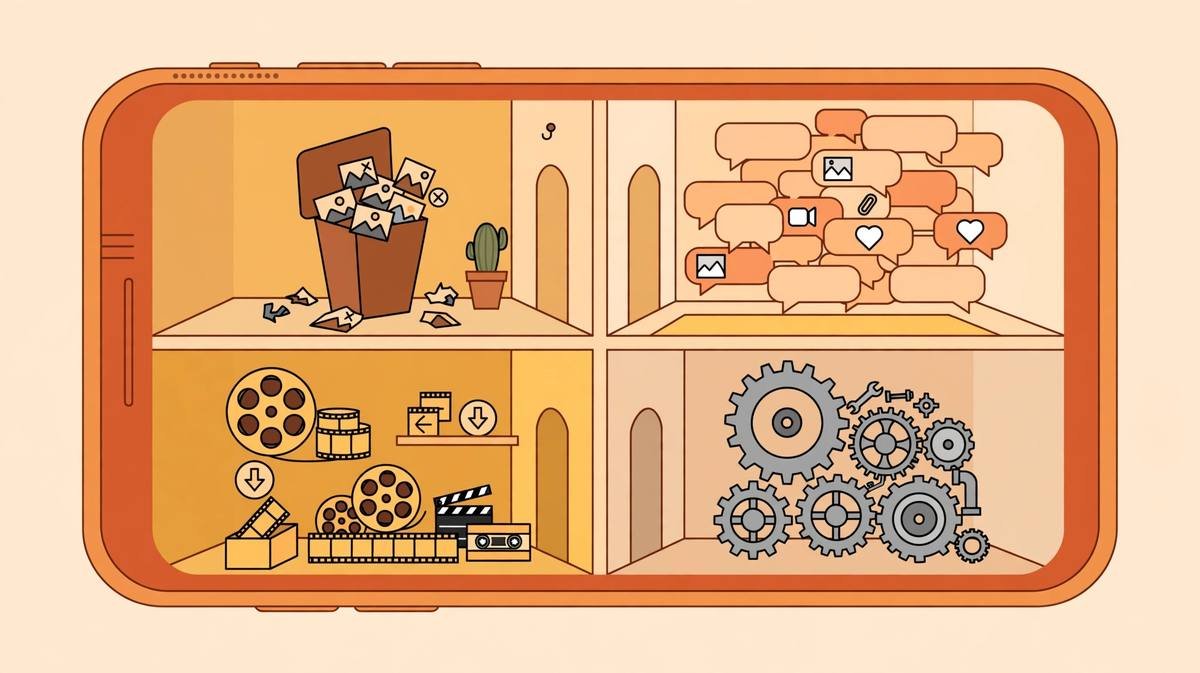
Suspect One: The Trash That Has Not Emptied Yet
This is the most common reason the warning survives a big cleanup, and almost nobody suspects it. Deleted files are not deleted. When you remove photos and videos, they move to a trash folder. On iPhone it is Recently Deleted in Photos; on Android it is Trash in the Gallery, Google Photos, or Files app. There they sit for around 30 days before disappearing for real. The storage stays occupied the entire time.
So if you “deleted everything” twenty minutes ago, you freed almost nothing. Open the trash inside whichever app you deleted from and empty it permanently. People routinely recover several gigabytes in this one step. It costs nothing they had not already decided to throw away.
Suspect Two: Messaging Apps, the Biggest Hidden Tenant
Open WhatsApp or Telegram’s own storage screen (in WhatsApp, Settings, Storage and Data, Manage Storage) and prepare for a shock. Years of group chats quietly accumulate photos, forwarded videos, voice notes, and documents. They are all auto-downloaded, all invisible in your gallery if you turned off saving to it, and all still very much on the phone.
These managers are genuinely good tools. They rank your chats by size and let you delete a single group’s media without touching the conversation itself. Work through the top few chats and most people find the single largest recovery available anywhere on the phone. While you are there, turn off auto-download for videos, or set media visibility the way you actually want it. Then the tenant stops moving back in.
Suspect Three: Offline Downloads You Stopped Remembering
The films you downloaded for a flight two summers ago are still there. The same goes for Spotify playlists, YouTube downloads, and the Netflix row you finished. Offline map regions from a trip abroad count too. None of it appears in your gallery or files. It lives inside each app, counted under that app’s storage, waiting patiently.
Check the downloads section inside each streaming and maps app you use. Delete what you have watched, heard, or travelled past. This suspect is painless. Everything here can be downloaded again the day you actually need it, which for most of it is never.
Suspect Four: The “Other” and System Data Categories
Every phone carries a category that sounds like a shrug: Other on Android, System Data on iPhone. Inside it live the operating system itself, app caches, search indexes, and system logs. Downloaded voices, fonts, and update leftovers sit there too. A normal size is several gigabytes. On iPhone it commonly sits somewhere in the 5 to 15 GB range, depending on the phone. It is the phone’s working clutter, not an intruder.
You cannot delete this category directly, and cleaner apps claiming to purge it are fibbing. What you can do is encourage the phone to housekeep. Restart it, install any pending system update, then leave it charging on Wi-Fi for a few hours. The deep tidying runs while the phone is idle and powered. Clearing bloated app caches helps at the edges too. Our guide to how to clear cache on Android covers that safely. If System Data stays enormous, above roughly 25 GB, after all of this and a few days of normal use, the reliable cure is the heavy one. Do a full backup, a reset, and a restore, which rebuilds the bookkeeping from clean. Keep it as the last resort it deserves to be.
Suspect Five: Leftovers From Apps and Updates
Two quieter leftovers round out the list. Apps you uninstalled sometimes leave folders of their data behind. They stay visible in a file manager under the app’s name long after the icon is gone. An update that downloaded but never installed can leave a large partial file sitting in storage. So can one that failed halfway. Your file manager’s Downloads folder is worth one honest look as well. It is the junk drawer of every phone, full of PDFs, installers, and saved clips nobody remembers saving.
Delete leftovers from apps you no longer have, and anything in Downloads you do not recognise as yours to keep. If a folder’s name means nothing and belongs to no app you use, it is a leftover, not a system treasure.
Verify the Fix Worked
Finished cleaning? Prove it, because guessing is how this problem keeps its reputation. Restart the phone, wait a few minutes, and open the storage screen again. Compare the total and, more importantly, the categories. The number should have dropped, even if the coloured bar takes a while to redraw itself.
Then comes the clever part: check again in a week. If one category climbs steadily back, you have identified your true culprit. The answer is managing that one habit or app, not another panicked mass deletion. A phone that says storage is full but nothing on it is almost never haunted. It is just keeping things in rooms you had not opened, and now you have the keys to all of them. Keeping a few gigabytes free permanently also protects you from the wider slowdowns a packed phone suffers. Our guide to why a phone is so slow explains them.
Frequently Asked Questions
I deleted photos and videos, so why does it still say full?
Because deleting moves them to a trash folder where they occupy the same space for about 30 days. Empty the Recently Deleted or Trash folder inside your gallery or photos app to reclaim the space immediately.
Is a huge System Data or Other category a virus?
No. It is the operating system’s own files: caches, indexes, logs, and update leftovers. It only warrants the heavy backup-and-restore cure if it stays far above its normal range. That means after restarting, updating, and a few days of normal use.
How much storage should I keep free?
A few gigabytes at minimum, and ideally around a tenth of the phone’s total. Updates need room to download and unpack. Apps need room to cache, and a phone with no headroom slows down across the board.
Will a factory reset fix storage that stays full?
Yes, it is the most complete cure for a bloated Other or System Data category, because it rebuilds everything cleanly. Back up fully first. Consider setting up fresh and pulling your data back from the cloud, rather than restoring an old backup that may carry the bloat with it.
The Bottom Line
When a phone shows storage full but nothing on it, the space is hiding, not gone. It sits in a trash folder waiting out its 30 days, inside messaging and streaming apps, in leftover files, or in the system’s own bookkeeping. Read your breakdown, match the category to its hiding place, empty them in order, and verify a week later. That sequence finds gigabytes that random deleting never will.
1 thought on “Phone Storage Full but Nothing on It? Where the Space Really Went”