

Your battery is draining, the phone feels warm in your pocket, and some app you opened once last week is apparently still awake. You want to stop apps running in the background, and you are right to. But there is a wrong way to do this, and it is the way most guides teach: restrict everything, then spend a week wondering why your messages arrive an hour late and your morning alarm app got shy.
This guide works in a safer order. First, find out which apps are actually running behind your back. Then sort them into two lists, the passengers you can restrict freely and the drivers the phone genuinely needs awake. Then apply the settings that keep the passengers stopped, including the powerful brand-specific ones most guides never mention.
First, the Truth About the Recent Apps Screen
Swiping apps away from the recent apps screen feels like closing them. Mostly, it is theatre. The swipe removes the app’s window from the list; its background services, the part that syncs, tracks, and wakes the processor, often keep running untouched. Worse, a fully closed app has to be rebuilt from zero next time you open it, which costs more processor and battery than resuming it would have.
So use the recents screen for tidiness if you like, but do not count it as control. Real control lives in Settings, and it starts with evidence.
Find Out Which Apps Actually Run in the Background
Guessing wastes effort on apps that were never the problem. Your battery screen keeps receipts: open Settings, then Battery, then Battery usage, and look at the apps near the top. The telling figure is background activity, apps spending hours active while your screen was off. A game you played for ten minutes showing five hours of background time has just confessed.
Developer Options hides a second witness, Running services, which lists what is alive right now and how much memory it holds. You do not need it for the fixes below, but glancing at it once teaches you how busy a “resting” phone really is.
Armed with names, sort them before you touch a single toggle.
The Two Lists: Restrict These, Never Touch Those
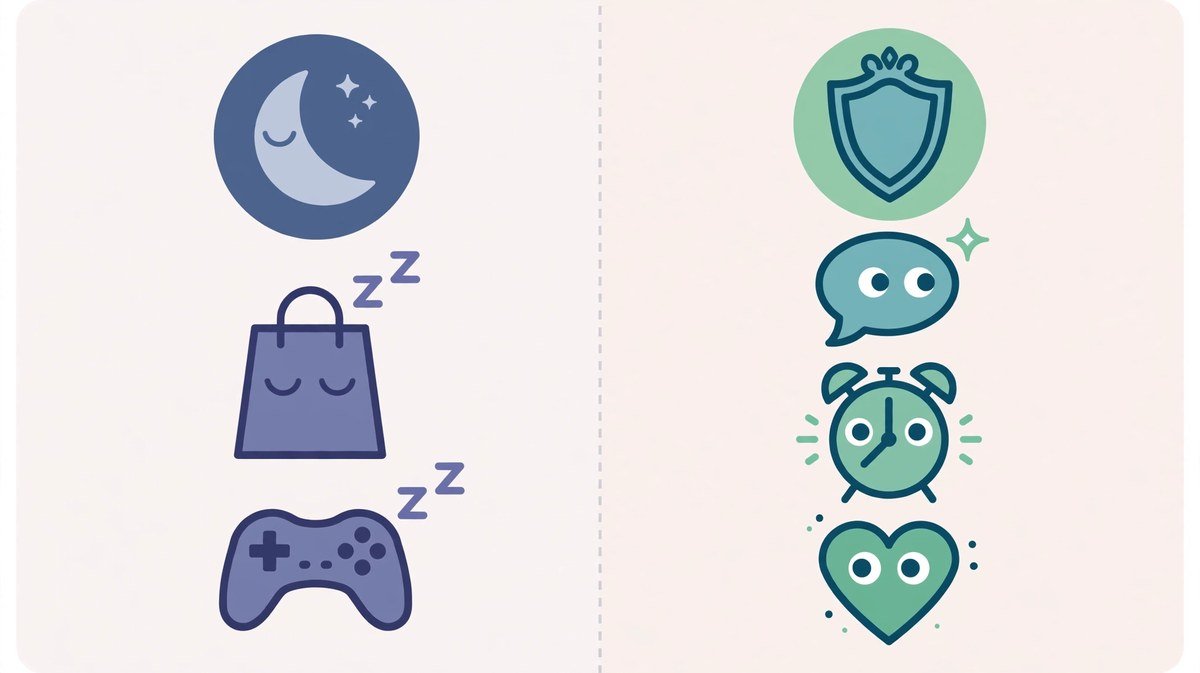
Restrict freely: shopping apps, games, social apps you prefer to check manually, news apps, food delivery, and preinstalled bloat you cannot uninstall. Nothing bad happens if these sleep until you open them. Their notifications wait, their feeds refresh when asked, and your battery keeps the difference. On most phones, this list holds the worst background offenders anyway.
Never restrict: messaging apps like WhatsApp, Telegram, and Messenger, unless late messages genuinely do not matter to you. Restricted messaging apps receive in batches or only when opened, which is the number one regret people have after following kill-everything guides. The same protection applies to your clock and alarm app, calendar reminders, health and fitness apps that sync a watch or band, banking and authenticator apps whose codes and alerts must arrive on time, and any VPN or automation app you deliberately run. If an app’s whole job is to reach you at the right moment, background access is not its flaw. It is its function.
Hold both lists in your head through every method below. The settings are identical; the wisdom is in where you point them.
Method 1: Restrict Background Battery, App by App
This is the main tool, and the one that sticks. Open Settings, Apps, choose the app, tap App battery usage (labelled Battery on some phones), and you will find three choices:
Unrestricted lets the app work in the background without limits. Reserve it for the never-touch list.
Optimized is Android’s default judgement call, restricting an app based on your usage patterns. Leave most apps here.
Restricted is the full stop: the app cannot run in the background at all and wakes only when you open it. Apply it to your passenger list, one app at a time.
There is also a data-side companion worth knowing: on the app’s Mobile data & Wi-Fi screen, turning off Background data stops the app using data behind your back while still letting it live. For apps you want quiet but not frozen, this halfway setting is often exactly right.
Method 2: The Brand Features Most Guides Never Mention
If you own a Samsung, you have a purpose-built tool for this exact job. Open Settings, Battery, Background usage limits. Here live Sleeping apps, which Android pauses when unused, and Deep sleeping apps, which never run in the background at all and work only while open. Put your passenger list in Deep sleeping, and Samsung handles the discipline permanently. A Never auto sleeping list protects the drivers, which tells you Samsung designed this screen around the same two lists you just made.
Xiaomi owners get a different lever: per-app Autostart permission, plus battery saver settings per app in the Security app. Turning Autostart off for passengers stops them launching themselves at boot and after events, which is where much background life begins. Other brands ship cousins of these features under their own battery menus; if your phone has a background or launch manager, it outranks every generic method in this guide.
Method 3: Force Stop, the “Right Now” Button
Force stop, found on every app’s info screen, kills the app completely, this second. It is the correct tool for an app that has frozen, looped, or gone rogue mid-session.
Understand its limit, though: force stop is a moment, not a rule. Android lets apps restart when a trigger fires: a push notification, an alarm they scheduled, a network change, the phone rebooting. Hours later the app may be awake again, not because it defied you, but because force stop never promised otherwise. Use it for emergencies, and use restriction (Method 1) or the brand lists (Method 2) for permanent quiet. This background activity is also a battery story as much as a speed one, which is why our guide to why a phone battery drains so fast treats these same apps as prime suspects.
Method 4: The Blunt Instruments (Use With Eyes Open)
Two global options exist, and both cut everything, drivers included.
Battery Saver throttles background activity across the phone, along with sync and visual effects. As a temporary measure on a long day it is excellent. Left on permanently, it quietly delays messages and mail, which makes it a poor lifestyle.
Developer Options offers a Background process limit, capping how many processes may stay alive. It sounds surgical; in practice it force-closes things the system expected to keep, and apps reopen colder and slower all day. It exists for developers testing behaviour, and normal owners should leave it at the standard limit.
Let Android Help: Adaptive Battery and Standby
Here is what the kill-everything guides never tell you: modern Android already restricts apps you ignore. It sorts apps into standby groups by how you use them, and the rarely used groups get their background work, sync, and network access progressively limited. Adaptive Battery in Settings sharpens those judgements using your habits.
This system needs two things from you: time to learn, about a week of normal use, and a passenger list that is not fighting it. If you manually restrict the worst few offenders and leave the rest on Optimized, you and Android end up splitting the work sensibly. It is also one of the load trims in our master guide to why a phone is so slow, because a phone whose idle state is truly idle feels faster at everything.
And skip the task-killer apps entirely. They close apps that Android then restarts, burning battery on the fight, while adding their own background presence and advertising to the phone. The tool that promises to end background chaos should not be part of it.
Frequently Asked Questions
Does stopping background apps actually save battery?
Yes, when the apps you stop were genuinely active: hours of background time on the battery screen is energy spent on nothing you asked for. Restricting apps that barely run anyway saves nothing measurable, which is why the evidence step comes first.
I restricted an app and now its messages arrive late. Why?
Because that is what restriction does: the app cannot wake to receive until you open it or the system batches a delivery window. Move messaging and alert apps back to Optimized or Unrestricted; they belong on the never-touch list.
Is Force stop bad for the phone or the app?
No. It is a normal, safe control, and no data is lost. Its only weakness is that it is temporary, since apps legitimately restart on system triggers. For permanent quiet, use battery restriction instead.
Will a restricted app still work when I open it?
Completely. Restriction governs background behaviour only. The moment you open the app it runs at full strength; it simply goes properly to sleep when you leave, instead of wandering the house.
The Bottom Line
To stop apps running in the background properly, sort before you strike. Restrict the passengers with per-app battery settings or your brand’s sleeping lists, protect the drivers whose job is reaching you on time, and let Adaptive Battery police the middle. Your battery lasts longer, the phone idles cool, and nothing you actually need goes silent.