
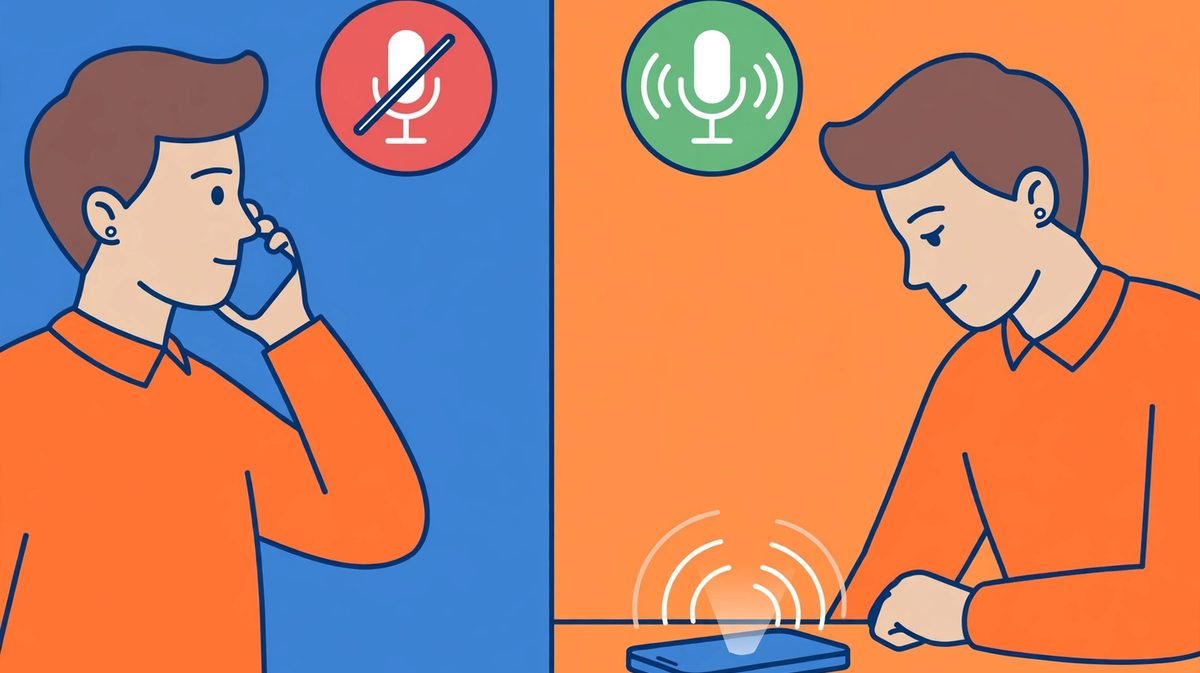
Here is the short answer: if your phone microphone works on speaker but not normal calls, your phone has more than one microphone. Normal calls mainly use the small primary mic at the bottom of the phone, while speakerphone mode leans on a different microphone. So when people can hear you on speaker but not on a regular call, the bottom mic is either blocked, misbehaving because of software, or failing.
The good news is that half the time this is not a broken mic at all. It is a Bluetooth device stealing your audio, a clogged mic hole, or an app holding the microphone hostage. Work through the quick tests below and, in about ten minutes, you will know exactly why your phone microphone works on speaker but not normal calls.
Why Your Phone Microphone Works on Speaker but Not Normal Calls
Almost every modern phone has two or three microphones. The primary mic sits at the bottom edge, right where your mouth is during a normal call. A secondary mic, usually near the top, handles noise cancellation and kicks in for speakerphone and video recording.
That is why this symptom is so specific. If the bottom mic is clogged with pocket lint, damaged from a drop, or blocked by software, regular calls go silent for the other person. Switch to speakerphone and the phone starts listening through the top mic instead, and suddenly you are loud and clear. Repair communities have confirmed this pattern over and over: primary mic dead at the bottom, secondary mic fine, which is exactly why speakerphone and camera audio keep working, as Android Central forum users found.
So the fact that speakerphone works is actually a useful clue. It tells you the phone’s audio system is fine and narrows the problem to the primary mic path: blockage, routing, software, or hardware, in that order of likelihood.
Rule Out the Bluetooth Trap First
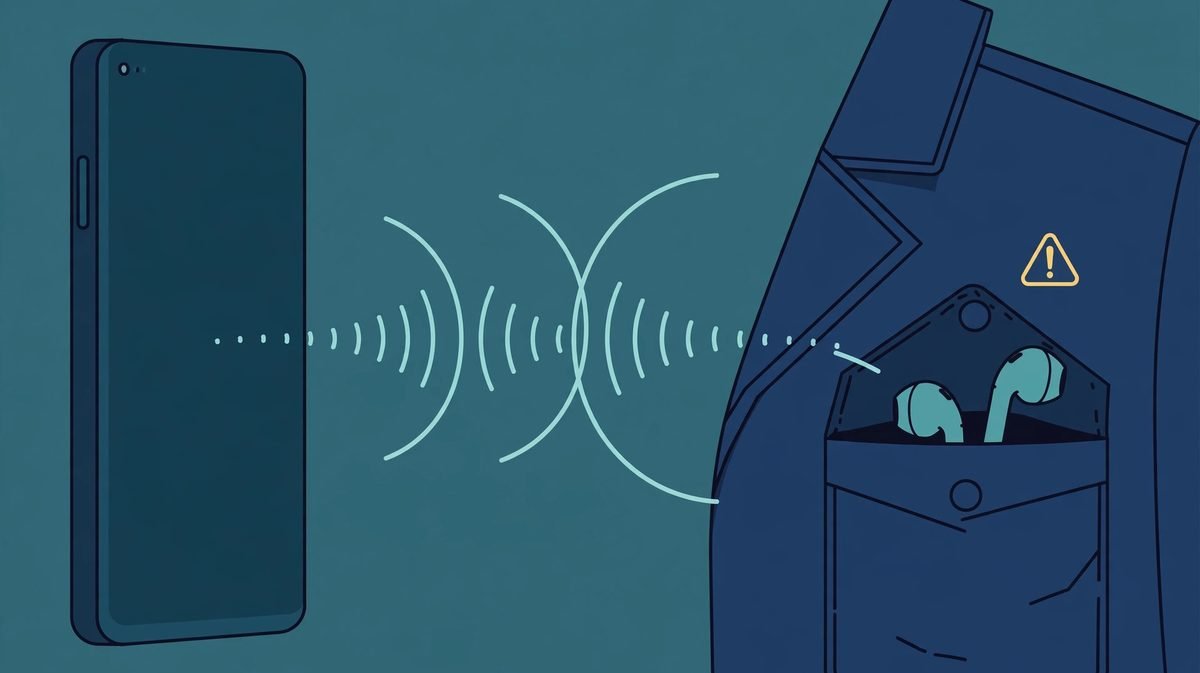
Before you touch anything else, check Bluetooth. This is the number one false alarm behind “mic not working” complaints. If your phone is connected to wireless earbuds, a car system, or a smartwatch, your call audio may be routing there instead of through the phone itself. You cannot hear the problem, but the other person hears silence, or your voice coming from earbuds sitting in your pocket.
- Open Settings, then tap Bluetooth.
- If anything is connected, disconnect it or turn Bluetooth off entirely.
- Make a test call.
Also check during a call: tap the audio output icon on the call screen and make sure it says Phone or iPhone, not Bluetooth or Speaker. If the mic starts working with Bluetooth off, that was the whole problem.
Run the 3-Test Diagnostic
These three quick tests tell you whether you are dealing with blockage, software, or hardware. Professional repair techs use essentially this same sequence, and this dealer diagnostic guide lays out the logic nicely.
Test 1: Voice recorder. Open your voice recorder app (Voice Memos on iPhone) and record a few seconds talking normally, holding the phone as you would on a call. Play it back. If the recording is clear, your primary mic hardware is probably fine and the issue is call-specific.
Test 2: Normal call. Call a friend or your voicemail and ask if they can hear you. If they cannot, but Test 1 was fine, suspect call audio routing or a software conflict.
Test 3: Speakerphone. During the same call, switch to speakerphone. If they can suddenly hear you, you have confirmed the classic pattern: primary mic path problem, secondary mic fine.
Write down your results. They point straight at the right fix: Test 1 fails, think blockage or hardware. Test 1 passes but Test 2 fails, think software or routing. All three fail, think hardware or deeper damage.
Fix 1: Clean the Bottom Microphone Hole
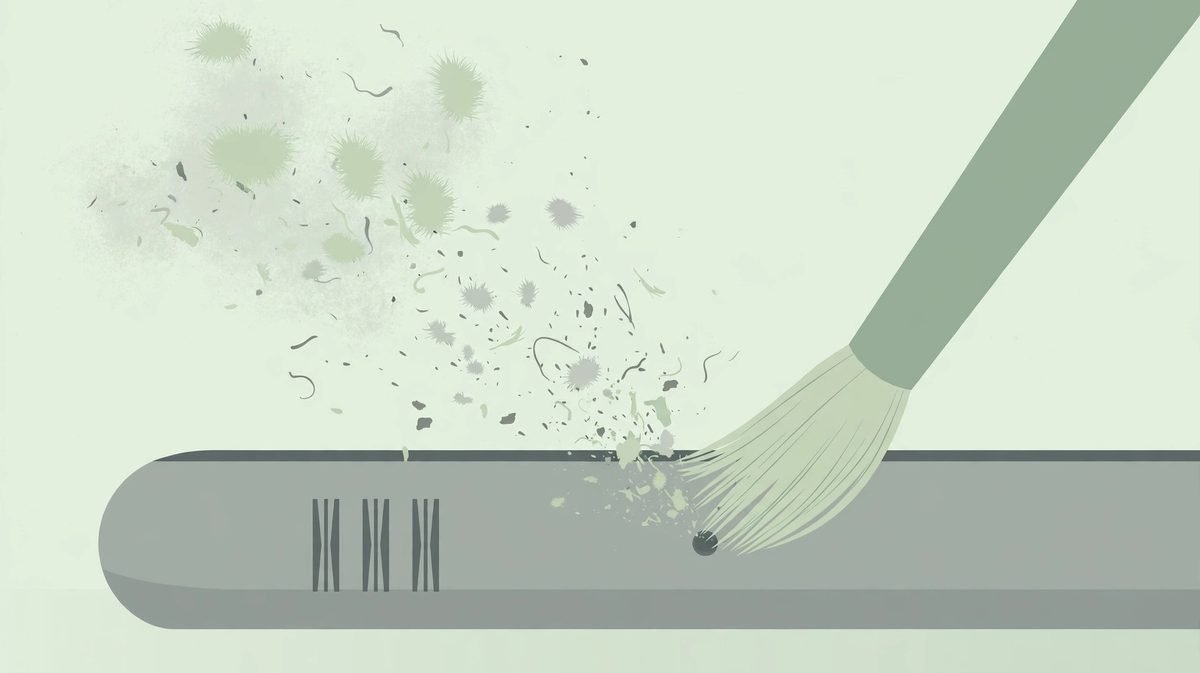
A clogged mic hole is the most common physical cause. The opening is tiny, often less than a millimeter wide, and pocket lint packs into it surprisingly fast. Here is the safe way to clean it:
- Find the mic hole. On most phones it is on the bottom edge, near the charging port. It looks like a pinprick.
- Use a soft-bristled brush (a clean, dry toothbrush works) and brush gently across the hole.
- You can follow with short bursts from a hand-squeezed air blower. Do not use canned compressed air at full force right into the hole.
What not to do: never poke the hole with a pin, needle, or SIM tool. The microphone membrane sits directly behind that opening and is easy to puncture. Repair techs warn about this constantly, because a cleaning attempt with a pin turns a lint problem into a dead mic.
Fix 2: Take the Case Off and Check for Blockage
Thick cases are a quiet culprit. Some cases, especially rugged or waterproof ones, partially cover the bottom mic hole. The mic still sort of works, but your voice arrives muffled or drops out entirely, and speakerphone (using the top mic) sounds fine by comparison.
Take the case off completely and make a test call. If the problem disappears, your case is the problem. Either switch cases or check whether the case has a proper cutout aligned with the mic hole. The same goes for tempered glass or films that wrap around the bottom edge.
Fix 3: Check Which Apps Hold Microphone Permission
Sometimes another app grabs the microphone and does not let go, so the phone app cannot use it during calls. Voice assistants, call recorders, and some social apps are the usual suspects.
On Android, go to Settings, search for “permission manager” or “app permissions,” then tap Microphone. You will see every app with mic access. Try turning mic permission off for apps you do not recognize or recently installed, then test a call. On iPhone, go to Settings, then Privacy and Security, then Microphone, and review the list the same way.
If the mic starts working after you revoke one app’s permission, you have found your conflict. You can leave that permission off or reinstall the app later.
Fix 4: Restart and Update
The unglamorous fixes still work. Restart the phone fully, not just lock the screen. A restart clears stuck audio processes that can hold the mic path open.
Then check for updates: Settings, then System, then Software update on Android, or Settings, then General, then Software Update on iPhone. Audio driver and modem fixes ship in these updates more often than people expect. Also update the phone app itself from the Play Store or App Store if an update is waiting.
When It Is a Hardware Problem
If you have worked through everything above and the bottom mic is still dead across the voice recorder, calls, and every app, the mic itself has likely failed. Common histories: a recent drop, water or steam exposure, or the phone is simply old enough for the part to give out.
At this point a repair shop is the sensible move. Replacing a bottom mic is usually a quick, inexpensive repair, and a technician can confirm the diagnosis in minutes with known-good parts. Get a quote before authorizing board-level work, and be honest with yourself about whether an older phone is worth the repair cost.
FAQs
Why can callers hear me on speakerphone but not on a normal call?
Because the two modes use different microphones. Normal calls rely on the primary mic at the bottom of the phone; speakerphone uses the secondary mic near the top. If the bottom mic is blocked or broken, only normal calls are affected.
Is it definitely a hardware problem?
No. Bluetooth routing, a clogged mic hole, a blocking case, or an app holding mic permission cause the same symptom and are all more common than actual hardware failure. Work through the fixes above before assuming the mic is dead.
Can a software update cause this?
It can. Audio routing bugs sometimes arrive with system updates. If the problem started right after an update, check for a follow-up patch and try a restart first.
Will a factory reset fix the microphone?
Only if the cause is software, and it is a drastic step for a mic issue. Try every fix in this guide first. A reset erases everything, so back up before you even consider it.
Should I poke the mic hole with a pin to clean it?
No. The mic membrane is right behind the hole and punctures easily. Use a soft brush and gentle air only.
Conclusion
A phone microphone that works on speaker but not normal calls almost always means one thing: the primary bottom mic is not doing its job. Start with the easy wins, Bluetooth off and a test call, then clean the mic hole, ditch the case for a minute, and check app permissions. Most people find the culprit in the first three steps. And if none of it works, you now know exactly what to tell the repair shop, which saves you both time.