

Your iPhone refuses to connect to Wi-Fi, but your laptop, tablet, and other phones are working just fine. It is frustrating, especially when you need to browse the web, use apps, or make a call over Wi-Fi.
The problem may involve a saved network password, an iPhone setting, a VPN, or a compatibility issue with your router.
Start by checking what happens when you try to connect. Does your iPhone fail to join the network, or does it connect but show no internet access? The difference matters because each problem may need a different fix.
Work through the following solutions in order. Start with the simple checks and save the more disruptive steps for later.
First, Find Out What Is Going Wrong
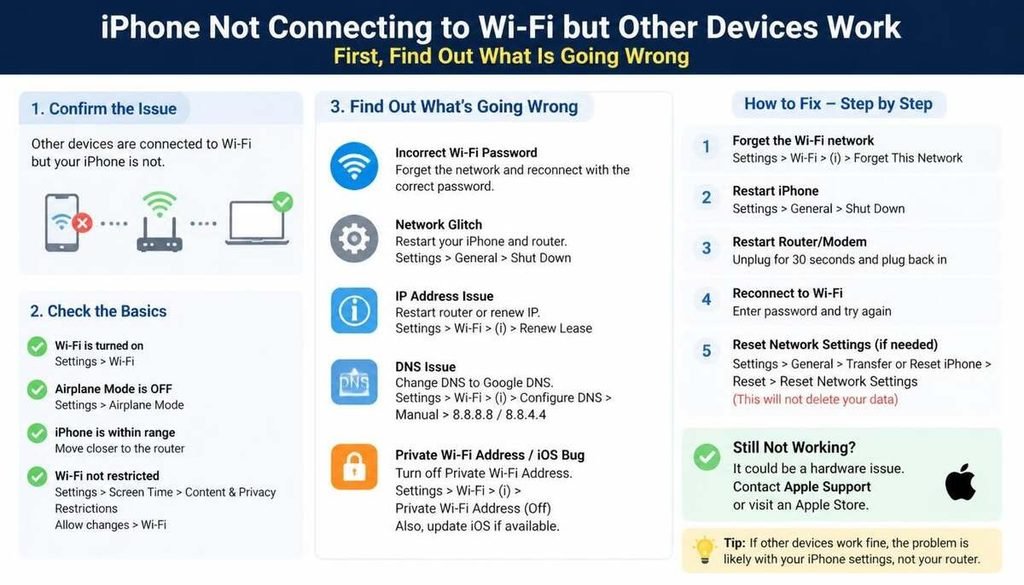
Before changing settings, take a moment to identify the exact problem.
Your iPhone Cannot Find the Wi-Fi Network
iPhone Not Connecting to Wi-Fi but Other Devices Work? Open Settings and tap Wi-Fi. Check whether your home network appears in the list of available networks.
The network may be hidden, or the router may be using settings that prevent your iPhone from detecting it.
If it appears everywhere except your iPhone, continue with the device-specific checks below.
Your iPhone Shows the Network but Will Not Connect
You may see messages such as “Unable to Join Network” or “Incorrect Password.” Sometimes the phone keeps attempting to connect without completing the process.
These symptoms can point to an incorrect saved password, a network configuration issue, or a restriction on the router. Even if the password works on another device, your iPhone may still have an outdated saved version.
Also Read: iPhone Charging Slowly With Original Cable and Adapter? 9 Fixes
Your iPhone Connects but Has No Internet
If you see a checkmark beside your Wi-Fi network but websites will not load, your iPhone has joined the wireless networkTry opening a website in Safari and compare the result with another device on the same network. If the other device can browse normally, move on to the iPhone-specific fixes.
1. Turn Wi-Fi Off and Back On
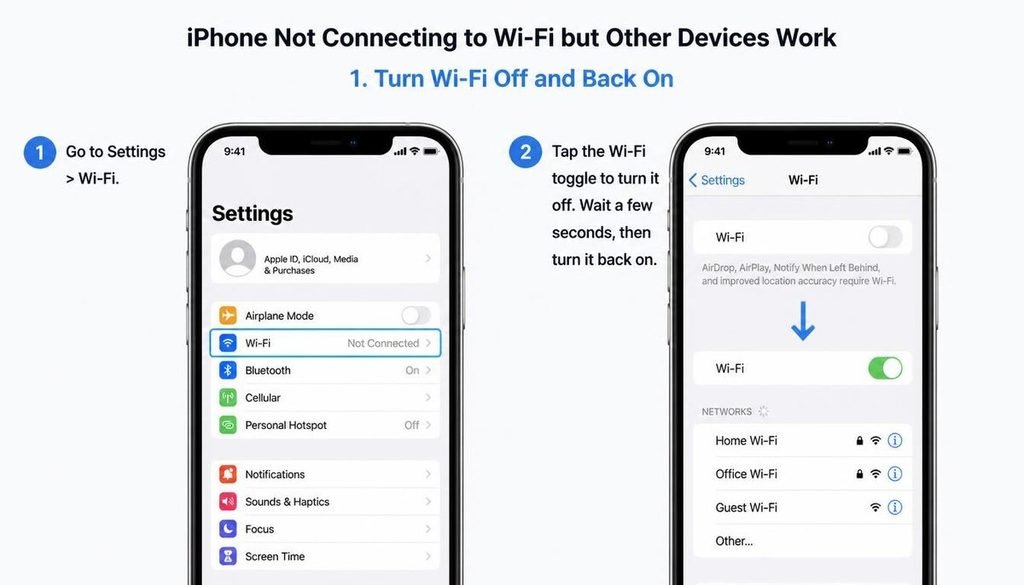
This is the easiest place to start. Turning Wi-Fi off and back on can help when your iPhone is temporarily struggling to establish a connection.
Here is how to do it:
- Open the Settings app.
- Tap Wi-Fi.
- Turn Wi-Fi off.
- Wait about 10 seconds.
- Turn Wi-Fi back on.
- Select your home network and wait for the connection.
Once your iPhone connects, open Safari and load a website to test it.
There is no need to keep repeating this process if it does not help.
2. Turn Airplane Mode On and Restart Your iPhone
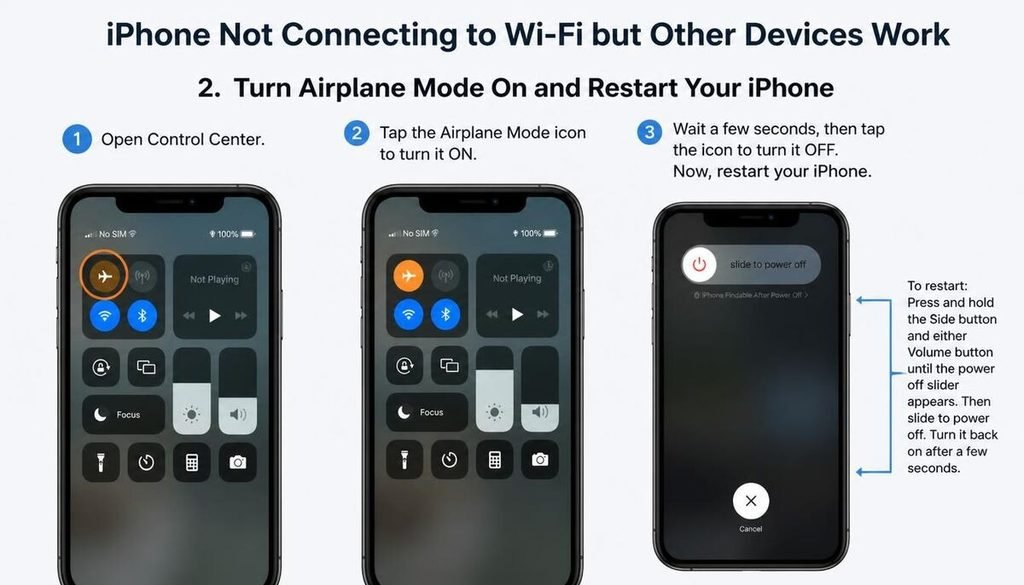
A quick wireless reset may help if the phone is having trouble reconnecting. Airplane Mode is an easy way to refresh its wireless connections before moving on to more involved troubleshooting.
Open Control Center, turn Airplane Mode on, and wait around 15 seconds. Turn it off again, return to Settings > Wi-Fi, and try joining your network.
On most recent iPhones, press and hold the side button and either volume button until the power-off slider appears. Drag the slider, wait for the phone to shut down, and then turn it back on using the side button. The button combination may differ on older models.
After restarting, try connecting again.
A restart will not erase your photos, apps, or saved files. If the connection still fails, continue rather than repeatedly restarting the phone.
3. Forget Your Wi-Fi Network and Reconnect
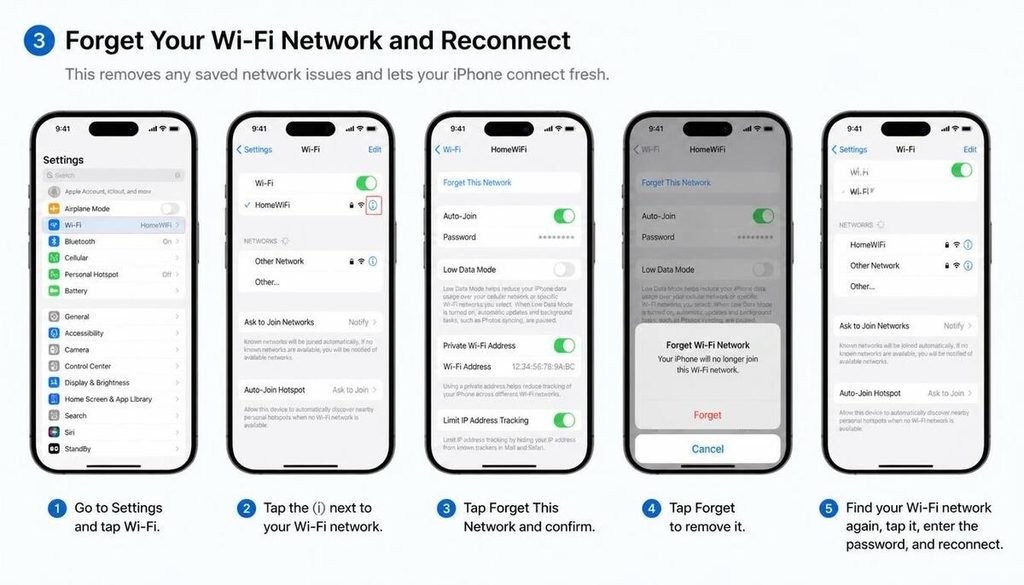
Your iPhone saves network details so it can reconnect automatically. If those details are outdated or incorrect, removing the saved network and joining it again may resolve the problem.
Follow these steps:
- Open Settings > Wi-Fi.
- Find your home network.
- Tap the information button (ⓘ) beside its name.
- Select Forget This Network.
- Confirm your choice.
- Enter the password and tap to join.
Wait for the checkmark to appear beside the network name. Then test a website or app that requires an internet connection.
If your iPhone connects successfully, the issue may have involved its saved network information. If it still displays an error, check the router and network access settings next.
4. Check Your Router and Try Another Wi-Fi Network
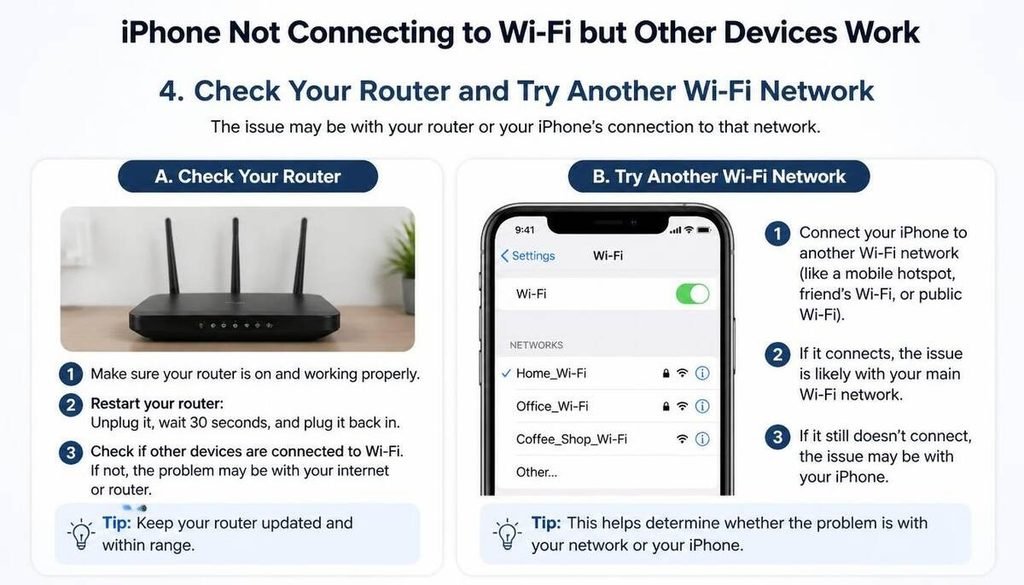
Other devices working is a useful clue, but it does not rule out every router-related problem. A router can have device-specific access restrictions, compatibility issues, or settings that affect one device differently from another.
Start with these checks.
Restart the Router if Needed
- Follow your router or internet provider’s instructions for restarting the equipment.
- Allow the router to finish starting up.
- Reopen Wi-Fi settings on your iPhone.
- Try connecting again.
A restart may clear a temporary network problem, although it will briefly disconnect other devices too.
Try a Different Wi-Fi Network
If possible, connect your iPhone to another trusted Wi-Fi network, such as one at a friend’s home.
The result helps narrow down the cause:
- Your iPhone cannot connect to either network: The issue may be related to the iPhone itself or its software.
- Your iPhone connects but cannot access the internet: Check the network configuration and any VPN or security software.
Check Router Compatibility and Access Restrictions
If you manage the router, check whether it has access controls, device limits, or compatibility settings that could affect the iPhone. Make sure its firmware is up to date and that its configuration follows the router manufacturer’s recommendations.
If you use a workplace, school, or managed network, ask the administrator for help instead of changing settings you do not control.
5. Check VPN and Security App Settings
+
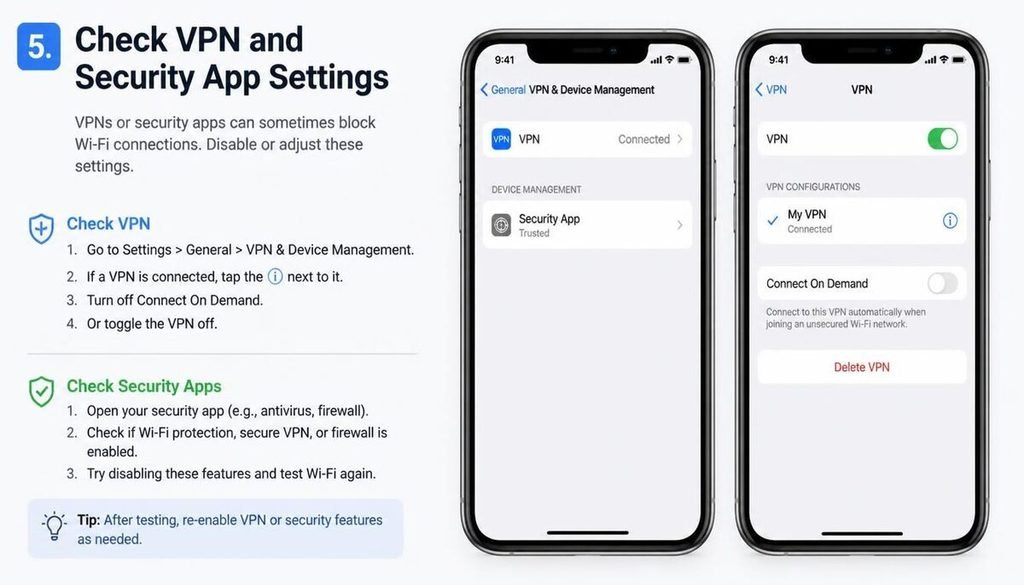
A VPN or security app can affect how your iPhone connects to the internet. This is worth checking if the problem started after installing a new app, enabling a VPN, or changing network settings.
First, open the VPN app and check whether the connection is active. If you use a work or school VPN, contact the relevant administrator before changing its configuration.
You can also check Settings > General > VPN & Device Management to review VPN configurations and device-management profiles. Menu details may vary by iOS version.
If a third-party VPN or security app appears to be causing the issue, follow the provider’s instructions for temporarily disabling or removing it, then restart your iPhone and test Wi-Fi again. Apple recommends removing VPN or security software as a troubleshooting step when appropriate.
If disabling the software restores the connection, contact the provider for a lasting solution rather than leaving important protection disabled unnecessarily.
6. Update iOS and Check Network
If the basic fixes have not worked, check whether your iPhone has an available iOS update.
An update may include fixes for software problems, but it is not guaranteed to resolve every Wi-Fi issue.
You can also check the following settings when relevant:
- Private Wi-Fi Address: This privacy feature gives a network a separate Wi-Fi address for your device. If your router uses MAC-address filtering or device-specific access rules, its administrator may need to review the configuration.
- IP address and DNS settings: If the iPhone connects but cannot access the internet, unusual manual network settings may be involved. Avoid changing these values unless you understand the required configuration or have guidance from your network administrator.
- Greyed-out Wi-Fi setting: If the Wi-Fi control is dimmed and cannot be enabled, restart your iPhone.
Change only the settings relevant to your symptoms. Randomly adjusting advanced options can introduce additional problems and make the original issue harder to diagnose.
7. Reset Network Settings as a Last Resort
If none of the earlier fixes works, resetting network settings may help clear a persistent configuration problem.
However, this step removes saved network information, so it should not be your first choice.
Before proceeding, make sure you have the passwords you need to reconnect to your usual Wi-Fi networks. If your iPhone is managed by your employer or school, check with the administrator first.
To reset the settings:
- Open Settings.
- Tap General.
- Select Transfer or Reset iPhone.
- Tap Reset.
- Choose Reset Network Settings.
- Confirm your choice when prompted.
Your iPhone will restart or complete the reset process. Once it is ready, return to Wi-Fi settings, select your network, and enter the password again.
This process removes saved Wi-Fi networks and passwords and resets network-related settings, including certain cellular and VPN configurations. It does not erase your photos, messages, or apps.
Be careful to select Reset Network Settings, not Erase All Content and Settings. The latter is a different option that removes your personal content.
If the iPhone connects to Wi-Fi after the reset but still cannot reach the internet, contact your internet provider or network administrator for further investigation.
What If Your iPhone Still Will Not Connect?
If you have tried the steps above and the problem remains, avoid repeatedly resetting settings or erasing the phone without a clear reason.
Try one final comparison: connect your iPhone to a different Wi-Fi network. If it works there, ask your home router’s manufacturer or internet provider to check the network configuration.
You should also seek help if the Wi-Fi setting remains greyed out or the device shows persistent connection problems after the recommended checks.
Final Thoughts
When your iPhone will not connect to Wi-Fi but other devices work, start with the simplest checks instead of assuming something is broken. Refresh the Wi-Fi connection, restart the phone, and forget and rejoin the network before moving to router settings or a network reset.
If your iPhone works on another network, focus on your home router. If it fails on every network, Apple Support can help you investigate further.
Frequently Asked Questions
Why does my iPhone connect to other Wi-Fi networks but not my home network?
Your home router may have device restrictions, compatibility settings, or a saved network configuration that is causing the problem. Forget your home network and reconnect first. If that fails, ask your router administrator or internet provider to review its settings.
Will resetting network settings delete my photos?
No. Resetting network settings does not delete your photos, messages, or apps. However, it removes saved Wi-Fi networks and passwords and resets certain network-related configurations.