
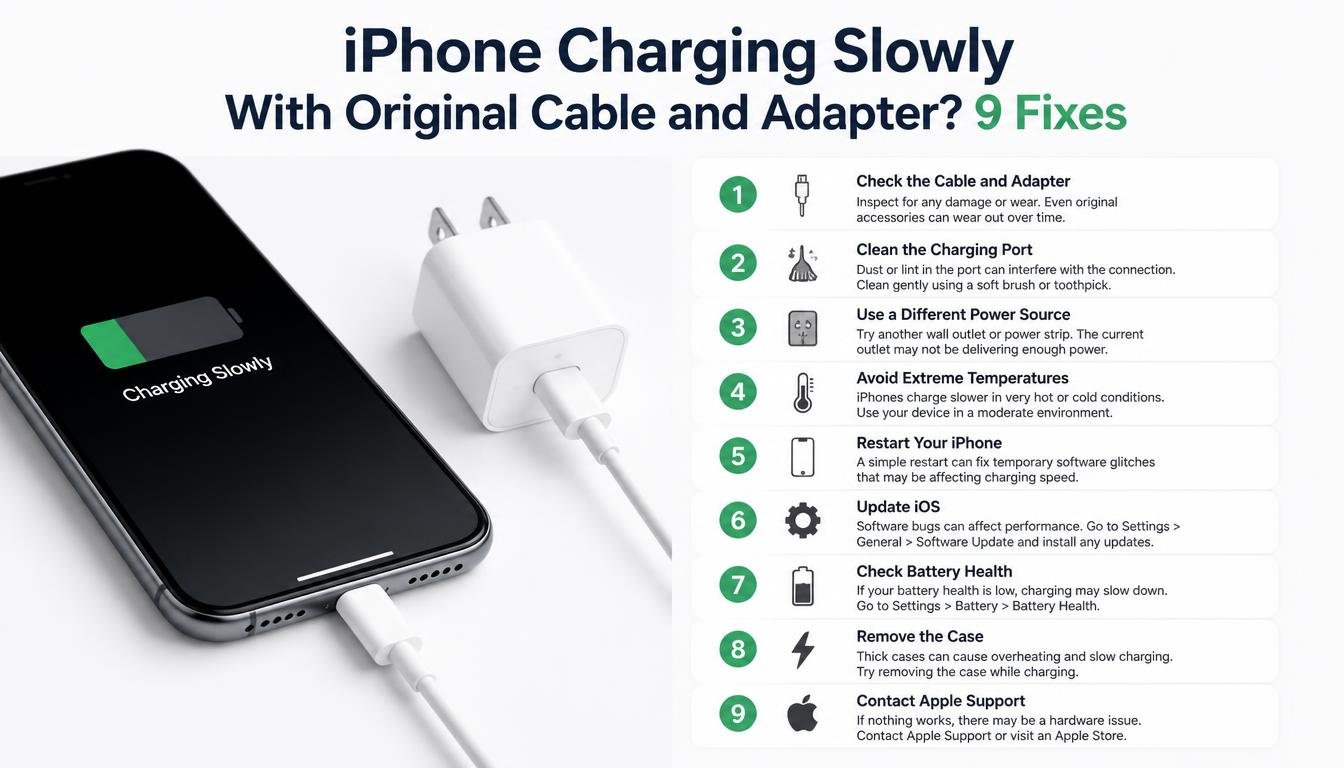
You’re using your original iPhone cable and adapter, but your phone still takes ages to charge. The battery percentage barely moves, even when you leave it plugged in.
Before you buy another charger, check what’s actually slowing it down. Your adapter might not provide enough power for faster charging, your iPhone could be too warm, or a charging setting may be affecting how the battery fills.
The right fix depends on when the slowdown happens. If charging is slow from the beginning, start with the adapter and connection. If it slows down near 80%, check your iPhone’s charging settings first.
1. Check Whether Your Original Adapter Supports Fast Charging
An original Apple adapter isn’t necessarily a fast-charging adapter. Apple has sold chargers with different power outputs, and the charging speed you get depends on your iPhone model and the adapter you use.
For example, an older, low-wattage adapter may charge your iPhone perfectly well but take longer than a compatible USB-C Power Delivery adapter.
Check the small print on your adapter to find its power output. Then compare it with Apple’s recommended charging setup for your particular iPhone.
Also, check whether your phone displays a slow-charging message. On supported iPhones and iOS versions, charging information may appear in Settings under Battery.
If your adapter has a lower output than your phone can use for faster charging, switching to a compatible adapter may help. You don’t need to buy the highest-wattage charger available; choose one that supports your model and Apple’s charging requirements.
For more details, read Apple’s guide to fast-charging an iPhone.
2. Find Out Whether the Cable or Adapter Is Causing the Problem
Even an original Apple cable can become damaged through everyday use. The same applies to the adapter, especially if it has been dropped or exposed to moisture.
Look closely at both ends of the cable. Fraying, bent connectors, discoloration, or a loose fit can indicate a problem. Also notice whether charging repeatedly starts and stops when the phone is left untouched.
The easiest way to narrow this down is to test one component at a time:
- Connect your iPhone to another known-working, compatible cable.
- If charging remains slow, test a compatible adapter.
- Use a reliable wall outlet rather than a computer USB port or low-power hub.
- Leave the screen off for a short period and compare the charging behavior.
If changing the cable fixes the problem, you may not need a new adapter. If neither accessory makes a difference, continue checking the phone itself.
Don’t continue using a cable or adapter that shows visible damage or becomes unusually hot.
3. Check the Charging Port Before Replacing Anything
Your cable and adapter may be fine, but the connection at the phone can still be the problem.
Pocket lint and dust can build up inside the charging port. This debris may prevent the connector from fitting properly, causing intermittent charging or an unreliable connection.
Disconnect your iPhone and inspect the port under good lighting. Look for visible debris, signs of damage, or a connector that doesn’t fit securely.
Avoid pushing needles, paper clips, or metal pins into the port. Don’t pour liquids into it or force anything inside. If debris is stuck or the port looks damaged, ask a qualified technician to inspect it.
If your iPhone has been exposed to water or displays a liquid-detection alert, disconnect the cable and follow Apple’s instructions before attempting wired charging again.
Apple’s charging troubleshooting guide explains what to do when an iPhone won’t charge as expected.
4. Let Your iPhone Cool Down
Does your iPhone charge normally at first, then become slower when the phone feels warm? Temperature could explain the change.
iPhones manage their temperature automatically. When a device becomes too warm, the system may reduce charging speed or temporarily pause charging to protect the battery.
This can happen when you’re charging in direct sunlight, playing demanding games, recording video, or using navigation for an extended period.
Move your phone away from heat sources and stop demanding activities while it charges. If it’s unusually warm, disconnect it when appropriate and let it cool naturally before trying again.
Don’t put your iPhone in a refrigerator or freezer. Sudden temperature changes can cause condensation and damage the device.
If the phone becomes extremely hot, the battery looks swollen, or you notice a burning smell, stop using and charging it and seek professional assistance.
5. See Whether Using Your iPhone Is Slowing Charging
Sometimes the charger is supplying power, but the phone is consuming much of it at the same time.
Gaming, video streaming, camera use, navigation, and other demanding activities can increase power consumption. That can make the battery percentage rise slowly, even when you’re using a suitable charger.
Try this simple comparison:
- Connect your iPhone to its usual charger.
- Close demanding apps and lock the screen.
- Leave the phone untouched for about 20 to 30 minutes.
- Check whether the battery percentage has increased.
If charging improves while the phone is idle, active use may have been contributing to the slowdown.
If the battery percentage barely changes even when the phone is cool and idle, check the charging settings and accessories instead of assuming that background activity is the only cause.
6. Check Whether Charging Is Being Limited Around 80%
If your iPhone charges reasonably quickly at first but slows down or stops around 80%, you may be seeing normal battery-management behavior.
Apple provides charging features designed to reduce battery aging. Optimized Battery Charging can delay charging beyond around 80% in certain circumstances. Supported models also offer a Charge Limit that lets you choose a maximum charge level.
The settings depend on your iPhone model:
- iPhone 15 and later: Open Settings, select Battery, and tap Charging to review the available charging options.
- iPhone 14 and earlier: Open Settings, select Battery, then Battery Health & Charging.
Menu names and available features can vary with your iOS version.
Check whether Optimized Battery Charging or a charge limit explains what you’re seeing before changing anything. These features are intended to help preserve battery health, so a pause near your chosen limit doesn’t automatically mean something is broken.
If your phone charges slowly from a low battery level as well, continue investigating the adapter, connection, and temperature.
7. Restart Your iPhone if Charging Suddenly Changes
If your iPhone used to charge normally but recently became slower, a temporary software issue may be worth ruling out.
Restart your phone using the normal procedure for your model. Once it turns back on, reconnect the charger and check whether the battery percentage increases while the screen is off.
A restart can help with temporary software problems, but it won’t repair a damaged cable, faulty adapter, or worn charging port.
If the problem started after a software update, check whether another iOS update is available. Avoid factory resetting your iPhone as an early troubleshooting step because it erases your data and is rarely necessary for an initial charging check.
8. Check Battery Health and Charging Behavior
If your iPhone has been used for several years, battery aging may be contributing to its charging problems.
An aging battery can hold less charge than it did when new. You might notice shorter battery life, unexpected shutdowns, or battery-related warnings alongside slow charging.
To check, open Settings, select Battery, and look for Battery Health or Battery Health & Charging, depending on your model and iOS version.
Pay attention to any service recommendation or battery warning. However, don’t assume the battery needs replacing based on slow charging alone. A faulty adapter, dirty port, or charging circuit can cause similar symptoms.
If the phone still charges slowly with known-working accessories and its temperature and settings appear normal, a professional inspection can help identify the actual fault.
9. Test Another Compatible Charger Before Arranging a Repair
If you’ve checked the settings, allowed the phone to cool, and inspected the connection, try one final comparison
How Long Should an iPhone Take to Charge?
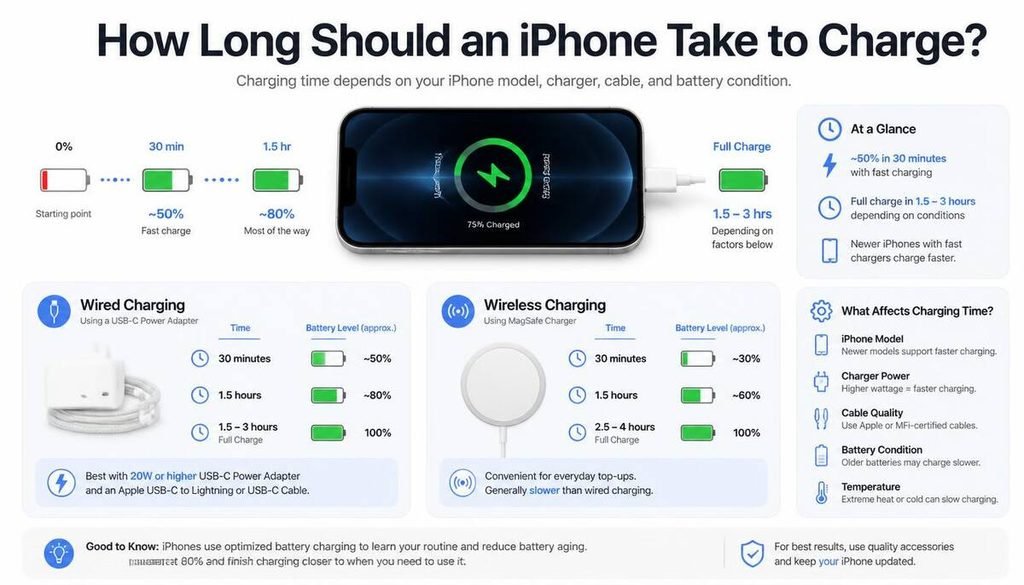
There’s no single charging time that applies to every iPhone. The model, adapter power, starting battery level, temperature, charging settings, and phone usage all affect the result.
A compatible higher-power adapter may charge a supported iPhone faster than a lower-power one. Charging also generally slows as the battery approaches full capacity.
If your iPhone provides a charging-time estimate in Settings or on the Lock Screen, use it as a guide rather than a guarantee. You can also compare charging behavior over time under similar conditions.
A sudden change from your phone’s usual charging speed is more useful to investigate than comparing your device with a different iPhone model.
Frequently Asked Questions
Why is my iPhone charging slowly with an original Apple charger?
The adapter may have a lower power output than your iPhone can use for faster charging. Heat, charging optimization, heavy phone usage, a damaged cable, or debris in the charging port can also affect charging speed.
Can an original Apple adapter be too weak for fast charging?
Yes. Apple adapters have different power outputs, and fast-charging requirements vary by iPhone model. Check your model’s requirements before purchasing a replacement.
Why does my iPhone charge slowly after 80%?
Charging can slow near 80% because of battery-management behavior, Optimized Battery Charging, a selected charge limit, or high temperature. Check the charging message and battery settings to understand which situation applies.
Does using my iPhone while charging make it charge more slowly?
It can. Demanding apps consume power while the phone charges, so the battery percentage may increase more slowly. Try leaving the screen off to see whether charging improves.
Should I replace my iPhone battery if charging is slow?
Not automatically. Slow charging can result from accessories, temperature, charging settings, the port, or the battery itself. Check the simpler causes first, then seek a battery or hardware assessment if the problem continues.
Final Thoughts
When an iPhone charges slowly with its original cable and adapter, start by checking the adapter’s power output and the condition of the cable and charging port. If those look fine, pay attention to temperature, phone usage, and charging limits.
The pattern matters. Slow charging from the beginning may point toward power delivery or a connection problem, while a slowdown near 80% may be normal battery management.
Test the simplest explanations first. If charging remains unusually slow with compatible, known-working accessories, have the phone inspected before spending money on a replacement battery or charger.
4 thoughts on “iPhone Charging Slowly With Original Cable and Adapter? 9 Fixes”