If you have plugged your phone into your car or tried connecting wirelessly, you probably expect Android Auto to appear almost immediately. Sometimes it does. Other times, the car screen seems to take forever to load, leaving you wondering whether something is wrong.
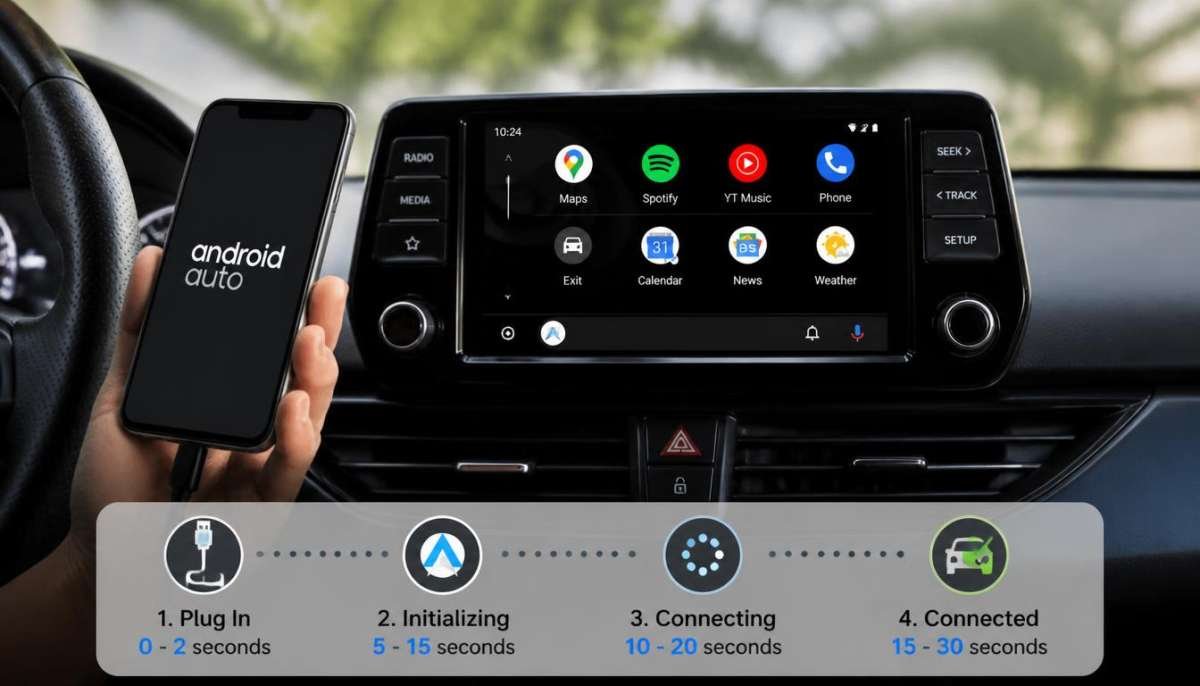
So, how long does Android Auto take to connect? On a compatible car and phone, Android Auto should generally start within a few seconds after the connection is established. The first setup can take longer because you may need to pair your devices, accept permissions, and follow the instructions on both screens.
If Android Auto takes unusually long every time you start your car, there may be an issue with the USB cable, wireless pairing, phone settings, or the car’s infotainment system. Here’s how to understand the delay and fix the most common causes.
How Long Should Android Auto Take to Connect?
Android Auto should start within a few seconds once your phone and car have successfully paired. However, the complete connection process can vary depending on your vehicle, phone, connection method, and whether you’re setting it up for the first time.
Your first connection may take longer because Android Auto needs permission to access certain phone features and communicate with your car’s display.
After the initial setup, reconnecting should generally be more straightforward. A compatible car may launch Android Auto automatically when you start the vehicle or connect your phone.
If the system consistently takes much longer than expected, don’t assume the delay is normal. Check whether the connection is getting stuck at a particular step.
Also Read : Android Phone Not Charging but Charging Symbol Showing? How to Fix It
Wired vs. Wireless Android Auto: Which Connects Faster?

The connection method can affect how quickly Android Auto becomes available. Both wired and wireless connections can work well, but they use different setup processes.
Wired Android Auto
With a wired connection, you plug your phone into a compatible USB port using a data-capable cable. Once the car recognizes the phone and any required prompts have been completed, Android Auto should start.
A wired connection is worth trying if wireless Android Auto keeps struggling to connect. However, a damaged cable, an incompatible USB port, or a cable that supports charging but not data transfer can prevent the system from starting properly.
For better reliability, Google recommends using a high-quality USB cable. A cable shorter than three feet (one meter) is a useful starting point.
Wireless Android Auto
Wireless Android Auto is convenient because you don’t need to plug your phone in every time you enter the car. However, the initial setup requires Bluetooth pairing, and the wireless connection also uses Wi-Fi.
During setup, keep Bluetooth, Wi-Fi, and Location Services enabled. Follow the instructions on your phone and car display to complete the pairing process.
Once the phone has been paired successfully, Android Auto should start within a few seconds. If it repeatedly takes too long, check the pairing settings and make sure your vehicle supports wireless Android Auto.
Why Is Android Auto Taking So Long to Connect?

When Android Auto takes longer than expected, the cause may be something simple. Start with the following possibilities before resetting everything.
1. Your USB Cable Is Causing Problems
A USB cable can charge your phone without reliably transferring the data Android Auto needs. A worn-out connector or loose connection can also interrupt communication between the phone and car.
Try a different, high-quality data cable. Connect it directly to the car’s compatible USB port rather than using an extension or USB hub.
2. Bluetooth or Wi-Fi Isn’t Connecting Properly
Wireless Android Auto relies on successful pairing and a working wireless connection. If Bluetooth pairing is incomplete or the phone’s wireless settings are interfering with the process, Android Auto may fail to launch.
Make sure Bluetooth and Wi-Fi are enabled. If the connection remains unreliable, remove the existing pairing and set up the phone and car again by following the manufacturer’s instructions.
3. Your Car’s Infotainment System Is Slow to Start
Sometimes the phone isn’t the problem. Your car’s infotainment system may need time to boot before it can recognize the phone and launch Android Auto.
Check whether the car’s display is fully awake and whether Android Auto is enabled in its settings. If the system remains unresponsive, consult the vehicle manual for instructions on restarting the infotainment system.
4. Your Phone or Car Needs a Software Update
Outdated software can sometimes contribute to connection problems. Check for available Android system updates and updates for Android Auto where applicable. If you use an aftermarket receiver, check its manufacturer’s website for firmware updates.
Before installing updates, make sure you follow the instructions for your specific phone or receiver.
5. Your Phone and Car Aren’t Fully Compatible
Not every vehicle with a USB port supports Android Auto, and wireless support is not available in every Android Auto-compatible car.
Check Google’s compatibility information and your vehicle manufacturer’s documentation. Confirm that your phone, car, and chosen connection method meet the requirements.
How to Make Android Auto Connect Faster

If Android Auto is slow to launch, work through these steps in order. Test the connection after each change so you can identify what actually fixes the problem.
- Restart the connection. Disconnect your phone, wait briefly, and reconnect it. For wireless Android Auto, check that Bluetooth and Wi-Fi are enabled.
- Try another USB cable. If you use wired Android Auto, choose a high-quality cable that supports data transfer.
- Restart your phone. A restart can resolve temporary software or connection problems.
- Restart the car’s infotainment system. Follow the vehicle manufacturer’s instructions rather than trying an unfamiliar reset procedure.
- Check for software updates. Install relevant updates for your phone, Android Auto, or aftermarket receiver.
- Pair the devices again. If wireless connection problems continue, remove the old pairing and follow the setup instructions again.
- Check the Android Auto settings. On supported phones, open Settings and search for Android Auto. Review the previously connected cars and connection preferences.
If none of these steps helps, consult Google’s Android Auto troubleshooting guide or contact your vehicle manufacturer. Avoid changing settings while driving; carry out troubleshooting while parked.
What If Android Auto Won’t Connect at All?
A connection that never completes needs a slightly different approach from one that is merely slow.
First, check whether your car supports Android Auto and whether the feature is enabled in the infotainment settings. Next, try a different compatible USB cable if you normally connect by wire.
If you’re using wireless Android Auto, check Bluetooth pairing and confirm that Wi-Fi is enabled. You can also try wired Android Auto if your car supports it, which helps determine whether the problem is specific to the wireless connection.
If Android Auto worked previously but suddenly stopped, restarting the phone and infotainment system is a sensible next step. If you recently changed cars or phones, review the saved pairing settings and repeat the setup process if necessary.
If the problem persists, your car’s software, phone compatibility, or infotainment hardware may require further investigation.
Frequently Asked Questions
Does Android Auto connect automatically?
It can. After the initial setup, a compatible car may launch Android Auto automatically when you connect your phone or start the vehicle. The exact behavior depends on the car and its settings.
Why does Android Auto take longer to connect wirelessly?
Wireless Android Auto requires Bluetooth pairing during initial setup and uses Wi-Fi for the wireless connection. Incomplete pairing, wireless settings, or the car’s startup process can delay the launch.
Should I use a USB cable if wireless Android Auto is slow?
Trying a USB connection is a useful troubleshooting step if your vehicle supports wired Android Auto. If the wired connection works reliably, the issue may be related to wireless pairing or connectivity rather than the entire Android Auto system.
Do I need to open Android Auto manually every time?
Not necessarily. On a compatible setup, Android Auto may launch automatically. If it doesn’t, check the car display for the Android Auto icon and follow any on-screen prompts.
Will updating my phone make Android Auto connect faster?
An update may help if your problem is caused by a software issue, but it isn’t a guaranteed fix for every delay. Check for updates when troubleshooting and also inspect the cable, pairing settings, and car compatibility.
Final Thoughts
Android Auto should generally start within a few seconds after a successful connection, although the initial setup can take longer. If it regularly struggles to launch, focus on the basics first: your USB cable, Bluetooth and Wi-Fi settings, software updates, and the car’s infotainment system.
You don’t need to reset everything immediately. Test one change at a time, and you’ll have a better chance of identifying the actual cause of the delay.