
You plug in your Android phone, see the charging symbol appear, and expect the battery percentage to rise. But after waiting for a while, the number stays exactly where it was. Sometimes, it even drops while the phone is connected to the charger.
This can happen for several reasons. Your phone might be receiving too little power, using battery faster than it can recharge, or struggling with a faulty cable or charging port. In other cases, the problem may involve the battery or the phone’s software.
The good news is that you can check several common causes at home before paying for a repair. Start with the simple tests below to find out why your Android phone shows the charging symbol but isn’t charging properly.
Why Is My Android Phone Not Charging Even Though the Symbol Shows?
The charging symbol usually means your phone has detected a power connection. It doesn’t necessarily mean the battery is receiving enough power to increase its charge.
For example, an old USB cable might supply some power but fail to charge your phone effectively. Similarly, demanding apps can consume power almost as quickly as the charger supplies it.
Here are the most common reasons this happens:
- Faulty charging cable: A damaged cable may deliver inconsistent power.
- Weak or incompatible adapter: Your charger might not provide enough power for your phone.
- Dirty charging port: Dust or lint can interfere with the connection.
- Heavy battery usage: Gaming, video streaming, navigation, and other demanding activities can slow charging.
- Overheating: Your phone may reduce or pause charging to protect its battery.
- Software problems: A temporary system glitch can affect charging behavior.
- Battery or hardware damage: An aging battery or damaged charging port may prevent normal charging.
The best approach is to test these possibilities one at a time instead of immediately assuming your battery needs replacing.
Also read : iPhone Charging Slowly With Original Cable and Adapter? 9 Fixes
How to Fix an Android Phone That Shows Charging but Isn’t Charging
Try the following solutions in order. After each step, check whether your battery percentage starts increasing.
1. Try a Different Charging Cable and Adapter
Start with your charger because it’s one of the easiest things to test.
A cable can look perfectly fine on the outside while having damaged internal connections. An adapter may also be faulty or incompatible with your phone.
Here’s what to do:
- Disconnect your current charger.
- Try a compatible, working charging cable and adapter.
- Plug the charger directly into a working wall outlet.
- Leave your phone idle with its screen turned off.
- Check the battery percentage after 15 to 30 minutes.
If the battery begins charging normally, your original cable, adapter, or power source may have been the problem.
Use a charger that meets your phone manufacturer’s requirements. A higher wattage rating alone doesn’t guarantee faster charging, because the phone and charger must support compatible charging standards.
2. Check the Power Outlet and Charging Port
Sometimes, the problem isn’t your phone’s battery at all. A loose wall outlet, unreliable USB port, or poor connection can interrupt power delivery.
Try another wall outlet and make sure both ends of the charging cable are firmly connected.
Next, inspect your phone’s charging port under good lighting. Dust and pocket lint can collect inside the port and prevent the connector from making proper contact.
If you see debris, don’t push a metal pin, needle, or other sharp object into the port. Avoid liquids and forceful cleaning, too. If the debris is stuck or the port looks damaged, ask a qualified repair technician to clean or inspect it.
If your phone recently came into contact with water, disconnect the charger and follow the manufacturer’s instructions for handling moisture. Don’t plug it back in while the port may still be wet.
3. Let Your Phone Cool Down
Does your phone feel unusually warm while charging? Heat may be the reason its battery percentage isn’t increasing.
Phones can reduce charging speed or temporarily pause charging when temperatures become too high. This may happen when you’re gaming, recording videos, using navigation, or charging in direct sunlight.
Try these steps:
- Unplug the charger if the phone is excessively hot.
- Stop demanding apps and allow the phone to cool naturally.
- Move it away from direct sunlight and other heat sources.
- Remove a thick case if it traps heat and can be removed safely.
- Resume charging only when the phone has returned to a normal temperature.
Don’t put your phone in a refrigerator or freezer to cool it down. Sudden temperature changes can cause condensation and damage the device.
If the phone becomes extremely hot, develops a swollen battery, or produces an unusual smell, stop using and charging it. Seek professional assistance.
4. Restart Your Android Phone
A temporary software glitch can sometimes interfere with normal charging behavior.
Restarting your phone is a simple way to rule out a minor system problem. Save any important work first, then restart the device using its normal power menu.
Once it turns back on, connect it to a compatible charger and check the battery percentage.
If your phone has frozen and won’t respond, consult the manufacturer’s instructions for performing a force restart. The button combination can differ between models.
A restart won’t repair a damaged cable or battery, but it can help determine whether a temporary software issue is involved.
5. Leave the Phone Charging Without Using It
If your phone is running several demanding apps, it may consume power nearly as quickly as it receives it.
This can make the battery percentage appear stuck, particularly when you’re playing games, watching videos, using a mobile hotspot, or running navigation.
To test whether this is happening:
- Connect your phone to a known-working charger.
- Close demanding apps.
- Turn off the screen and leave the phone idle.
- Check the battery percentage after 15 to 30 minutes.
If the percentage rises while the phone is idle, background activity or heavy usage may have been contributing to the problem.
If it still doesn’t increase, try another compatible charger and cable. If the problem continues with known-working equipment, further troubleshooting may be necessary.
6. Check Your Battery and Charging Settings
Some Android phones include battery protection or charging optimization features. Depending on the model, these features may slow charging or limit the charge level to help preserve battery health.
Open your phone’s Settings app and look for the Battery section. Check whether it displays charging information, a battery health warning, or a charging limit.
The exact menu names differ between manufacturers, so consult your phone’s manual if you can’t find these options.
Don’t automatically disable every battery protection feature. If your phone consistently stops charging at a particular percentage, first check whether that behavior is intentional. On supported Pixel phones, for example, charging optimization settings can affect charging behavior.
If you see a battery health warning or the phone repeatedly loses charge despite using a working charger, contact the manufacturer for further guidance.
7. Check for Software Updates
If the charging problem started after a software change or appears alongside other unusual behavior, check whether an update is available for your phone.
Open Settings and look for System Update or Software Update. The menu name depends on your device.
Install available updates according to the manufacturer’s instructions. Keep enough battery power available and follow any precautions shown on the screen.
An update may help if a software bug is involved, but it won’t fix a physically damaged port or worn-out battery.
Avoid factory resetting your phone as an early troubleshooting step. A reset erases personal data, and it is rarely the first thing you need to try for a charging issue.
8. Check for Battery or Charging Port Damage
If none of the previous steps helps, the problem may involve the phone’s hardware.
Look for these warning signs:
- The charging cable feels loose or disconnects easily.
- Charging starts and stops when the phone is stationary.
- The phone fails to charge with several known-working cables and adapters.
- The battery percentage drops even when the phone is idle and connected to a reliable charger.
- The phone displays a battery health warning or shuts down unexpectedly.
These symptoms don’t prove that the battery is faulty. A damaged port, charging circuit, or other internal component can cause similar problems.
If your phone supports wireless charging, testing it with a compatible wireless charger may help narrow down the issue. Wireless charging that works normally while wired charging fails may point toward a cable or port problem, although it isn’t a definitive diagnosis.
At this stage, a qualified repair technician can inspect the device and determine whether it needs a battery replacement or another repair.
Why Does My Battery Percentage Stay the Same While Charging?
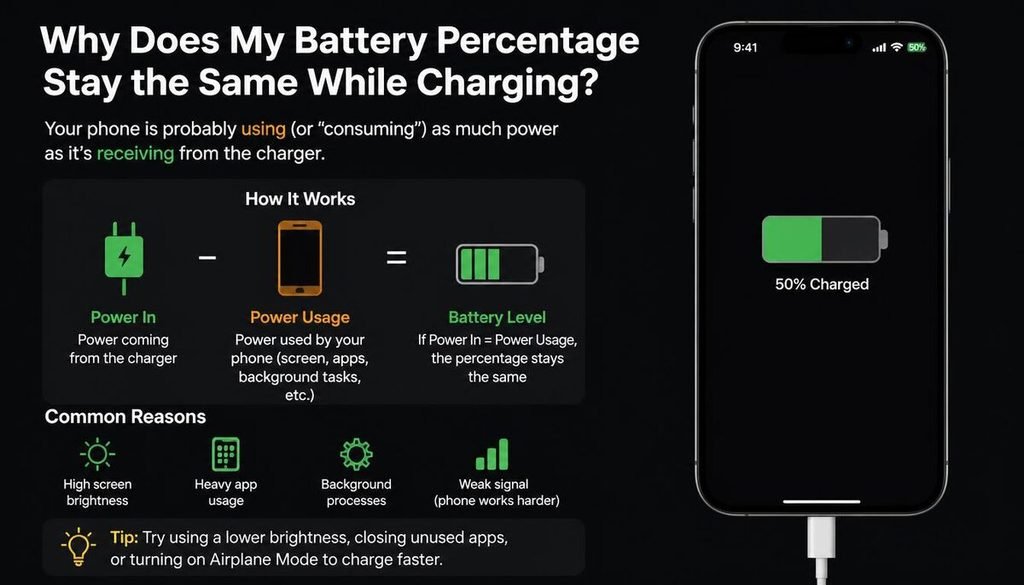
If your Android phone displays the charging symbol but the percentage stays unchanged, the amount of power entering the phone may be too low to produce a noticeable increase.
Consider these situations:
The battery percentage rises when the screen is off. Your phone may be using too much power while you’re actively using it. Try charging it while idle.
The percentage stays the same with every charger. Check the charging port, phone temperature, battery condition, and any charging restrictions.
The phone charges intermittently. A damaged cable, loose connector, or worn charging port may be interrupting the connection.
The phone stops charging at a particular percentage. Battery protection or charging optimization may be responsible, depending on the device.
The phone shows a charging symbol but repeatedly shuts down. This can indicate a deeply discharged battery or a hardware issue that needs further investigation.
Pay attention to the pattern rather than relying on the symbol alone. It can help you narrow down the cause without replacing parts unnecessarily.
When Should You Stop Charging Your Phone?
Most charging problems can be investigated with basic checks, but certain warning signs require extra caution.
Disconnect the charger if your phone becomes excessively hot, the battery appears swollen, you notice a burning smell, or you see physical damage around the battery or charging port.
Don’t press on a swollen battery, attempt to open the phone, or continue charging it to see whether the problem goes away.
If moisture may have entered the charging port, stop wired charging until the device is safe to reconnect according to the manufacturer’s guidance.
When a phone repeatedly fails to charge with compatible, working equipment, arrange a professional inspection rather than continuing to experiment with different chargers.
Frequently Asked Questions
Why does my Android phone show charging but the battery percentage doesn’t increase?
Your phone may detect the charger without receiving enough usable power to increase its battery level. A faulty cable, weak adapter, dirty port, overheating, heavy app usage, or battery problem can cause this. Try a known-working charger and check the percentage while the phone is idle.
Can a faulty charging cable cause this problem?
Yes. A damaged or incompatible cable can provide an unreliable connection or fail to deliver power properly. Test another compatible cable before assuming your phone needs repair.
Why does my Android phone charge only when switched off?
The phone may be consuming power faster than it receives it while running, or a software or hardware issue may be affecting charging. Try charging it while idle, check the cable and adapter, and restart the phone. If the problem continues, have it inspected.
Can a software problem stop a phone from charging properly?
A software glitch can contribute to charging problems, although accessories and hardware are also common causes. Restart the phone, check for updates, and test with a known-working charger before considering more advanced troubleshooting.
How do I know if my phone battery needs replacing?
Frequent unexpected shutdowns, poor battery life, health warnings, and persistent charging problems may indicate battery deterioration. However, a damaged cable, port, or charging circuit can produce similar symptoms. A technician can confirm the cause before you pay for a replacement.
Final Thoughts
When your Android phone shows the charging symbol but the battery percentage doesn’t increase, start by checking the charger, cable, power outlet, and charging port. Then let the phone cool down, restart it, and test charging while the screen is off.
If the battery still won’t charge with compatible, working equipment, the problem may require professional attention. Finding the cause first can save you time, prevent unnecessary repairs, and help you decide what to do next.
2 thoughts on “Android Phone Not Charging but Charging Symbol Showing? How to Fix It”